Table of Contents
- 1. Overview of Odoo CPQ
- 2. Installation of the CPQ app
- 3. Creating a Configurable Product in CPQ
- 4. Configurable Product Overview (Sofa)
- 5. Components & Attributes-Values
- 6. CPQ component configuration
- 7. Compatibility rules
- 8. CPQ Configuration
- 9. Dynamic Operation
- 10. Configuring a Product
- 11. Quotation & Output
- 12. Odoo CPQ - eCommerce
1. Overview of Odoo CPQ
Odoo CPQ lets you build and sell configurable products by breaking them down into components, where some are mandatory and others are optional, each with multiple selectable options. It simplifies the process of configuring complex products, automatically calculates prices based on selections, enforces compatibility rules to avoid errors, and seamlessly links the configuration with manufacturing through Bills of Materials (BoM).
2. Installation of the CPQ app
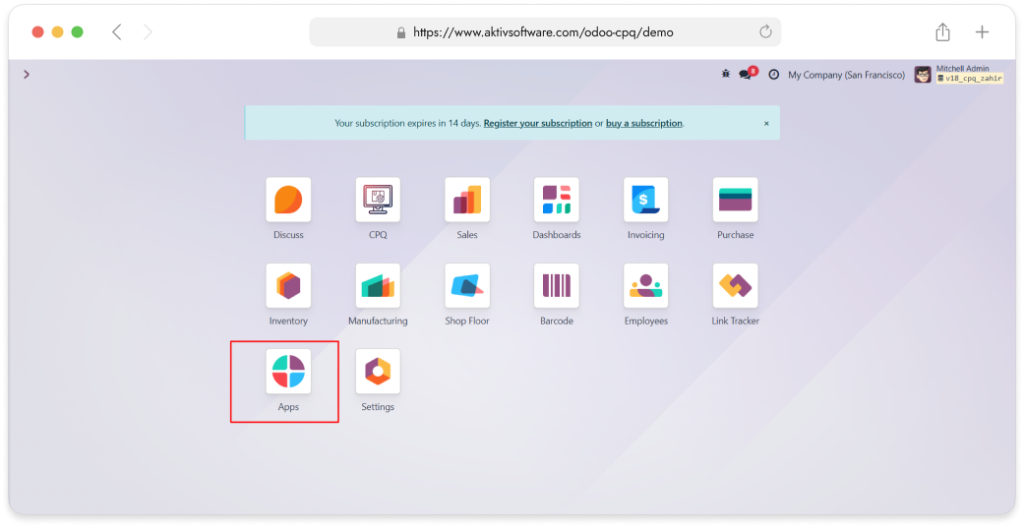
- Go to the Apps application
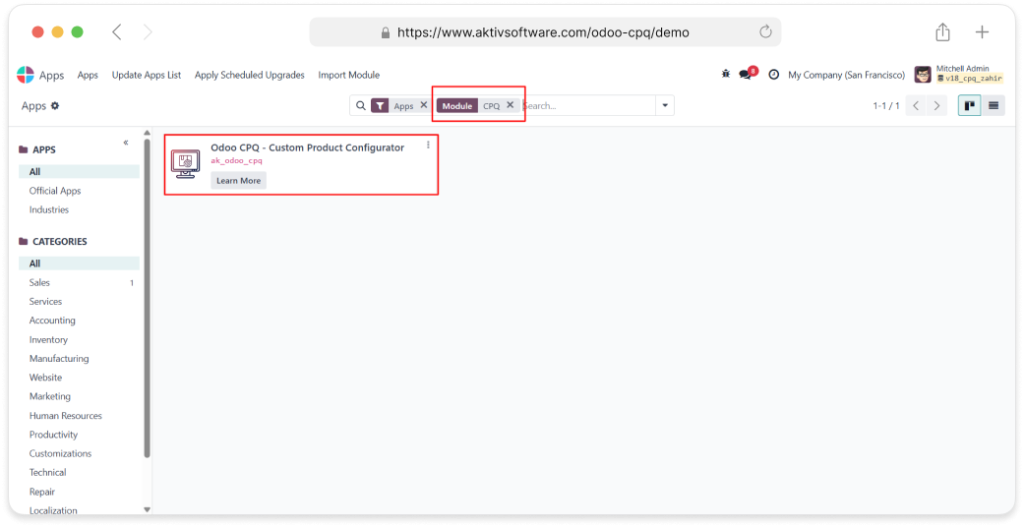
- Search for the CPQ application and install it.
3. Creating a Configurable Product in CPQ
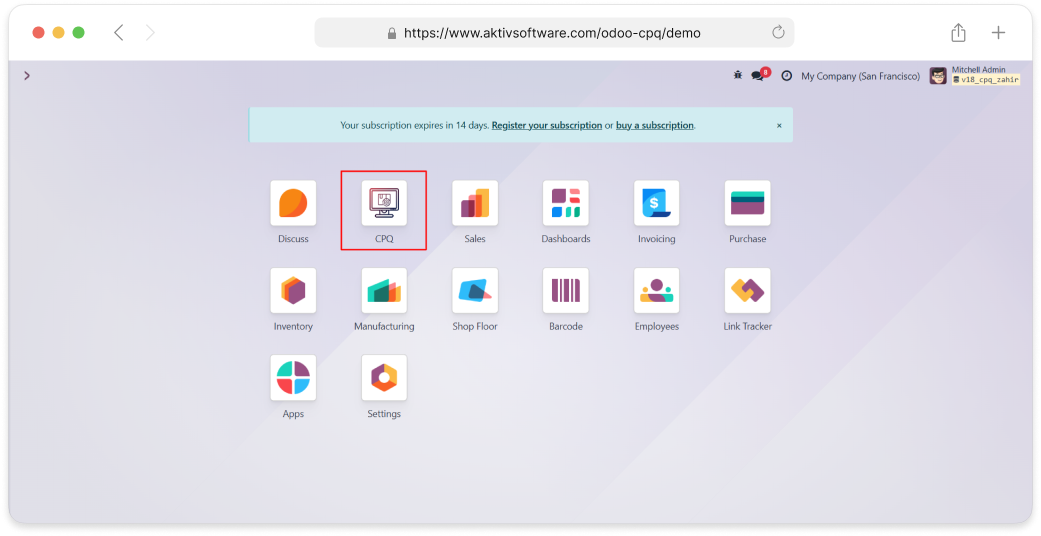
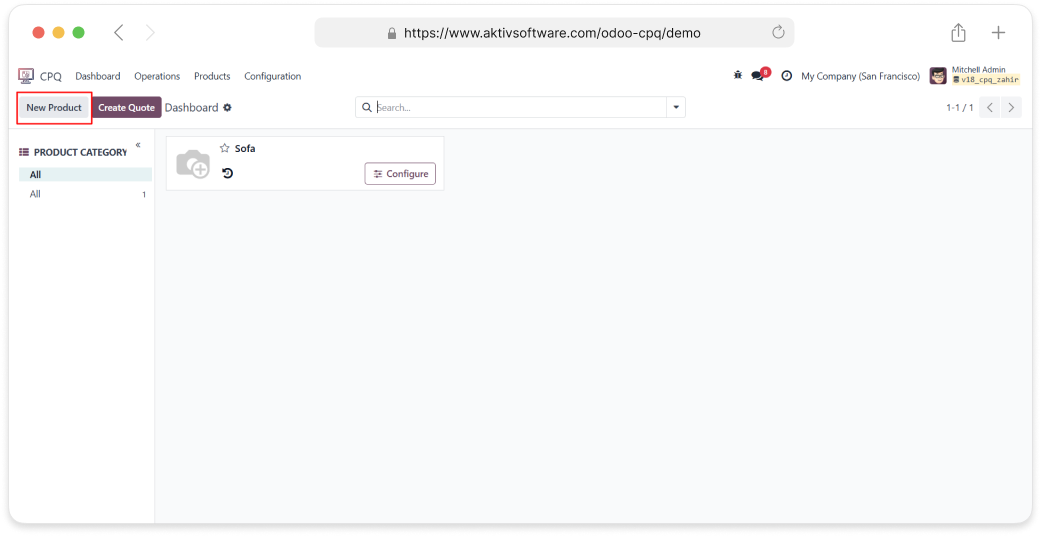
- Create a Configurable product from the CPQ screen
- Create a Configurable Product From Inventory & Sales:
- Go to sales application -> Product -> Products ->New
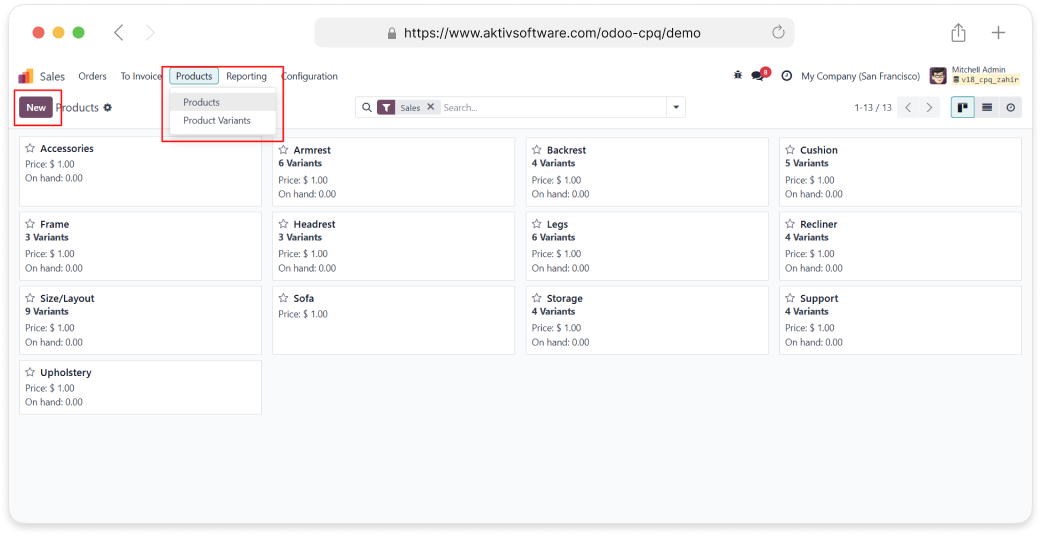
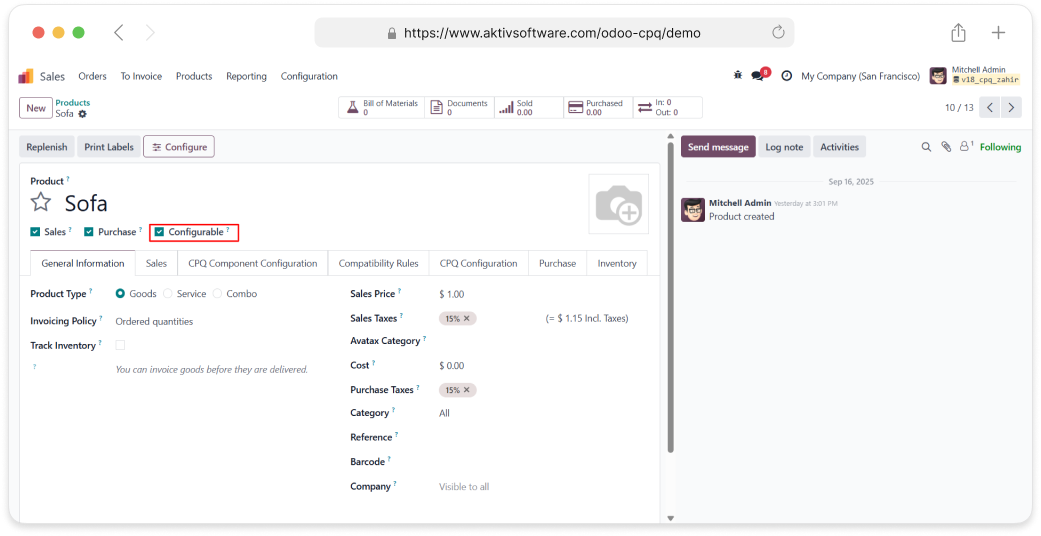
- In the Sales module, you must select the “Configurable” option to create a configurable
product.
- Go to Inventory application -> Product -> Products ->New
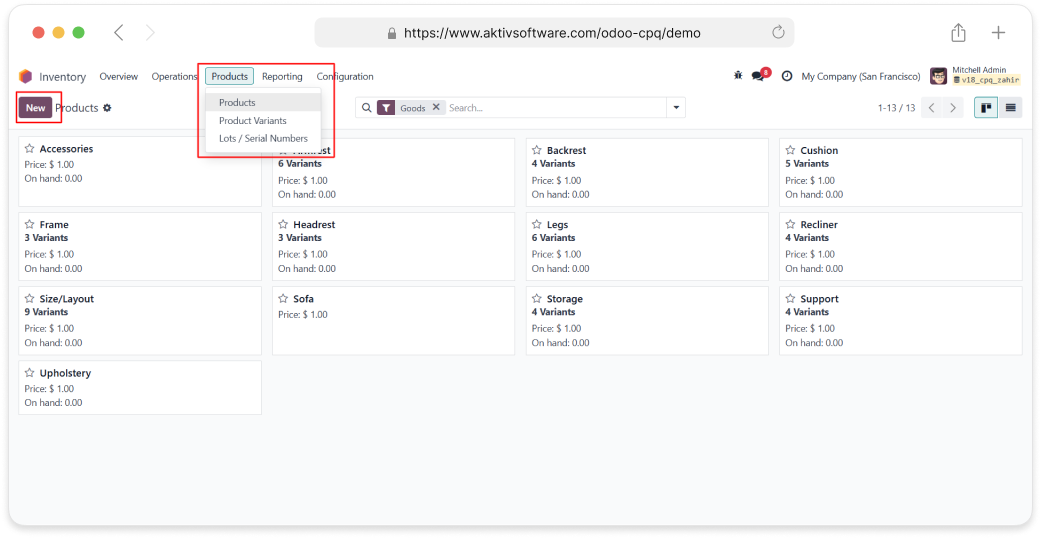
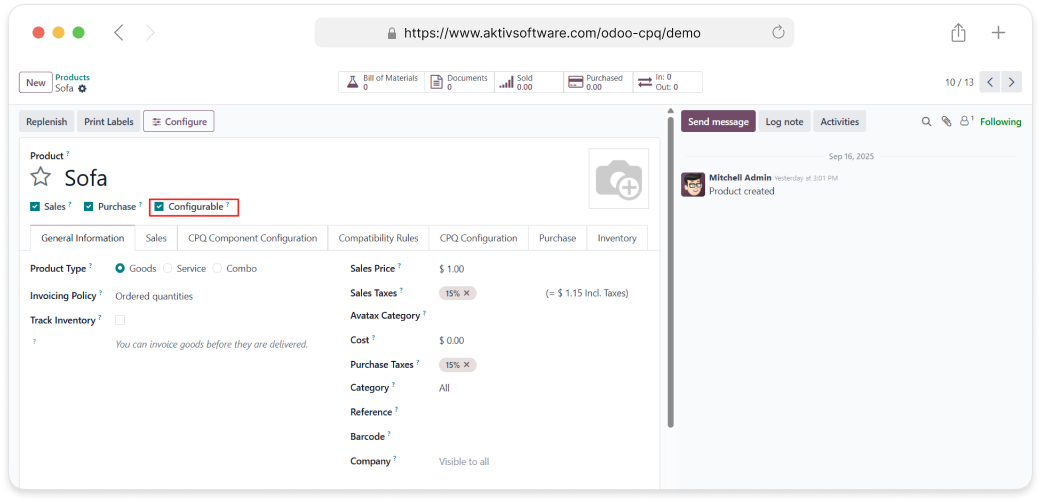
- In the Inventory module, you must select the “Configurable” option to create a configurable
product.
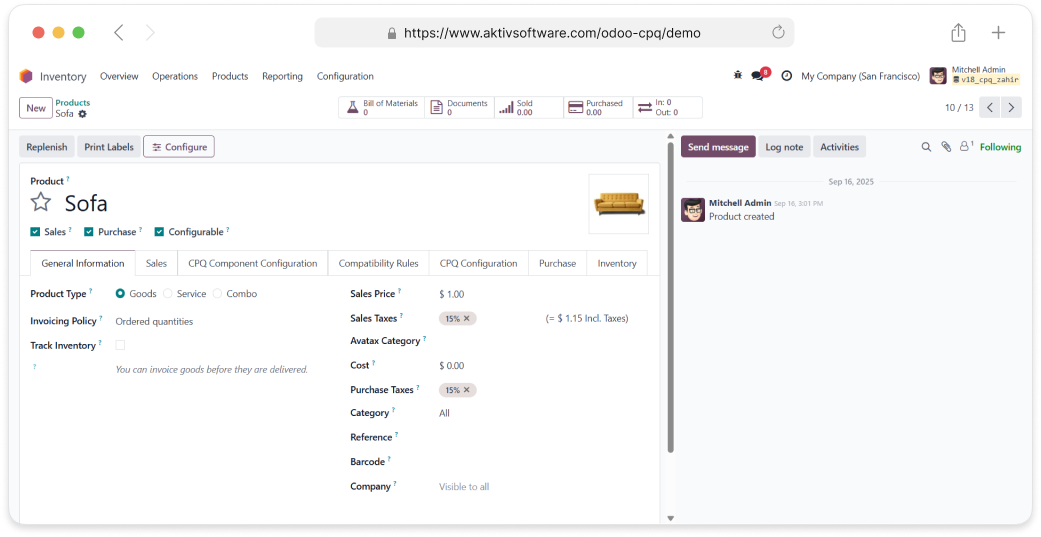
4. Configurable Product Overview (Sofa)
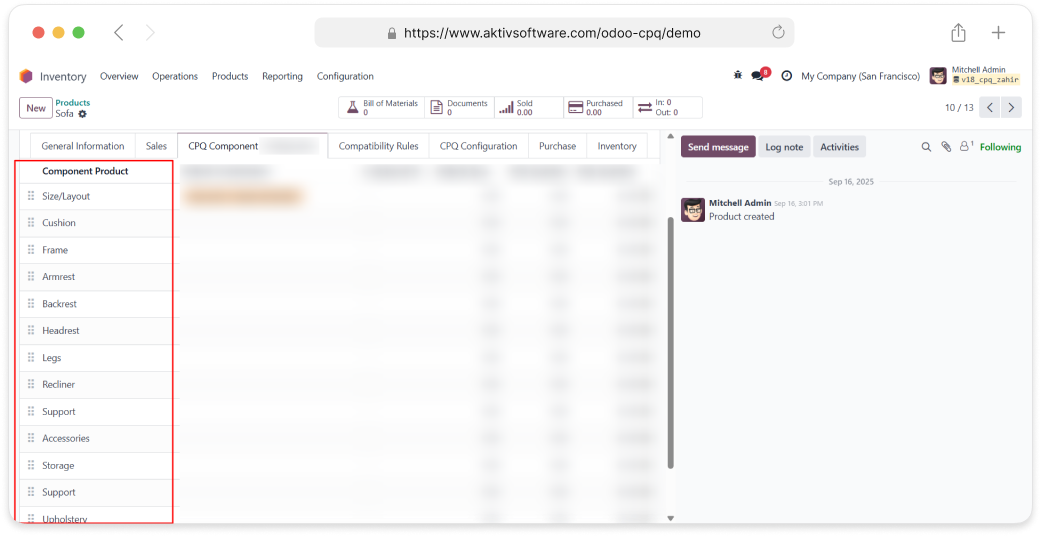
Sofa Components:
- Frame (Mandatory)
- Upholstery (Mandatory)
- Cushions (Mandatory)
- Legs (Mandatory)
- Armrests (Optional)
- Backrest Style (Optional)
- Recliner Mechanism (Optional)
- Storage (Optional)
- Accessories (Optional)
5. Components & Attributes-Values
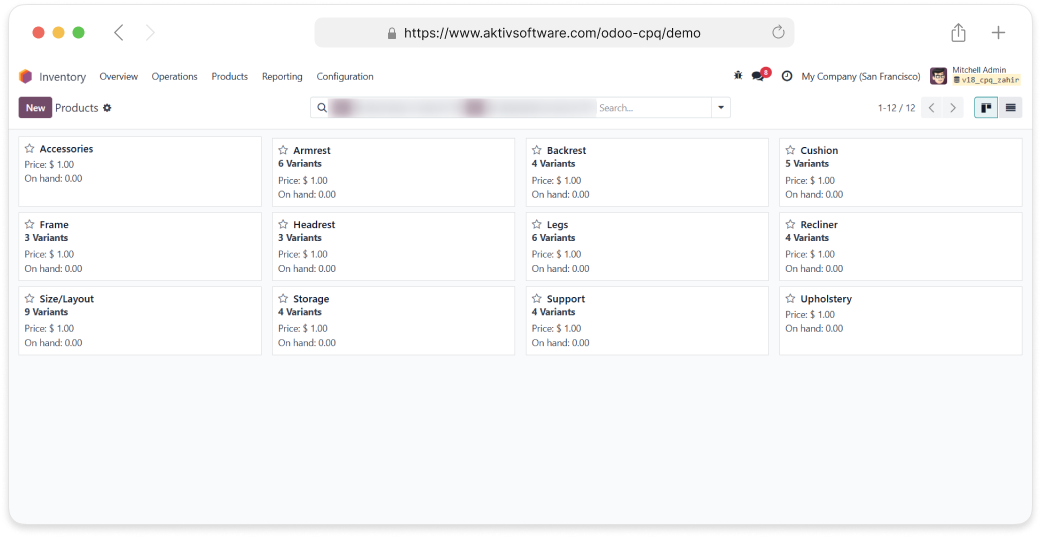
A component is a part that is needed to make a Configurable product complete. In CPQ,
the Configurable product is the main item, and components are the smaller parts that go
into it. For example, if the Configurable product is a sofa, its frame, cushions, legs, and
fabric are the components. On their own, components are not the final product, but
when put together, they create the finished Configurable product.
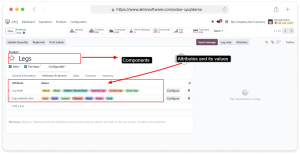
In CPQ, each component can have its own attributes, which are
characteristics that describe it, and values, which are the options for those characteristics. For example, if
the Configurable product is a sofa and the component is the legs, the attributes could be
material and color. The material attribute might have values
like wood or metal, and the color attribute might have values like black or brown. These attributes and values
allow the component to be customized so the overall Configurable product matches customer needs. In the product
form, this can be defined under the Product → Attributes and
Variants tab.
- Creating Attributes And Values:
- From the Inventory App
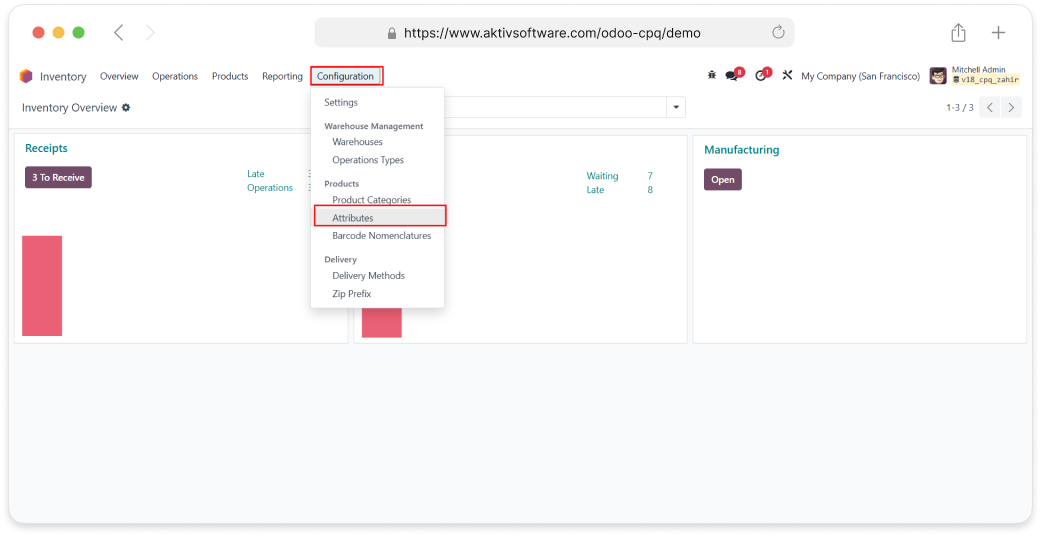
- Navigate to Inventory → Configuration → Attributes.
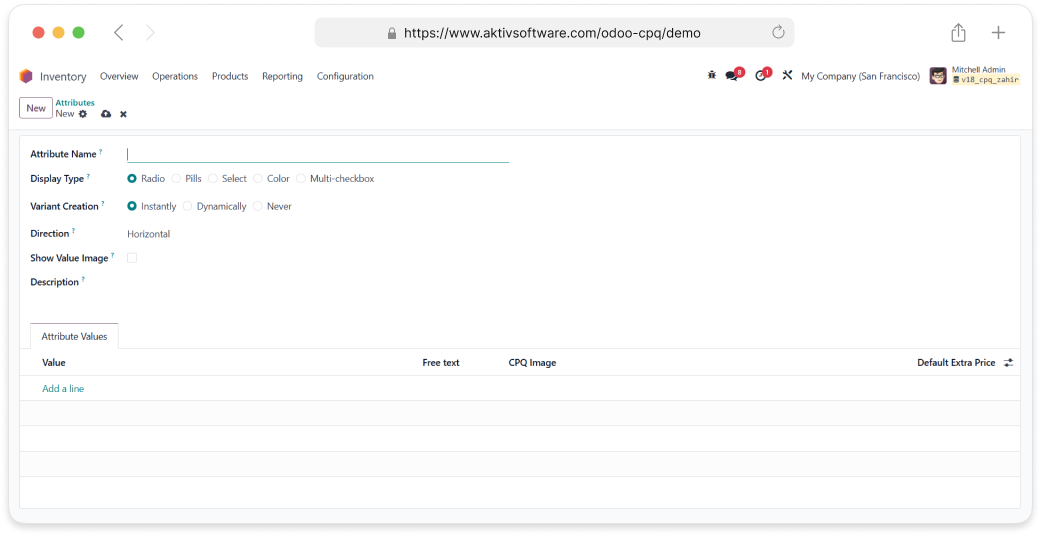
- Here, you can create new attributes and their values.
- Additional options are available, such as uploading images, choosing a selection type (e.g., radio,
dropdown, multi-checkbox), and setting other configurations.
6. CPQ component configuration
1. Add a component:
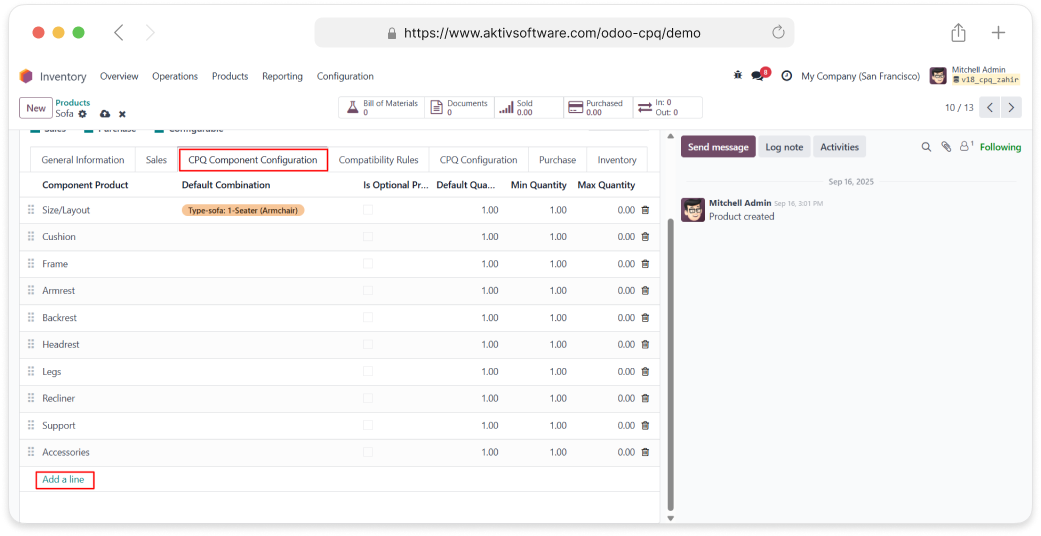
To add a component to a Configurable product:
- Open the product you want to configure.
- Navigate to the CPQ Component Configuration tab.
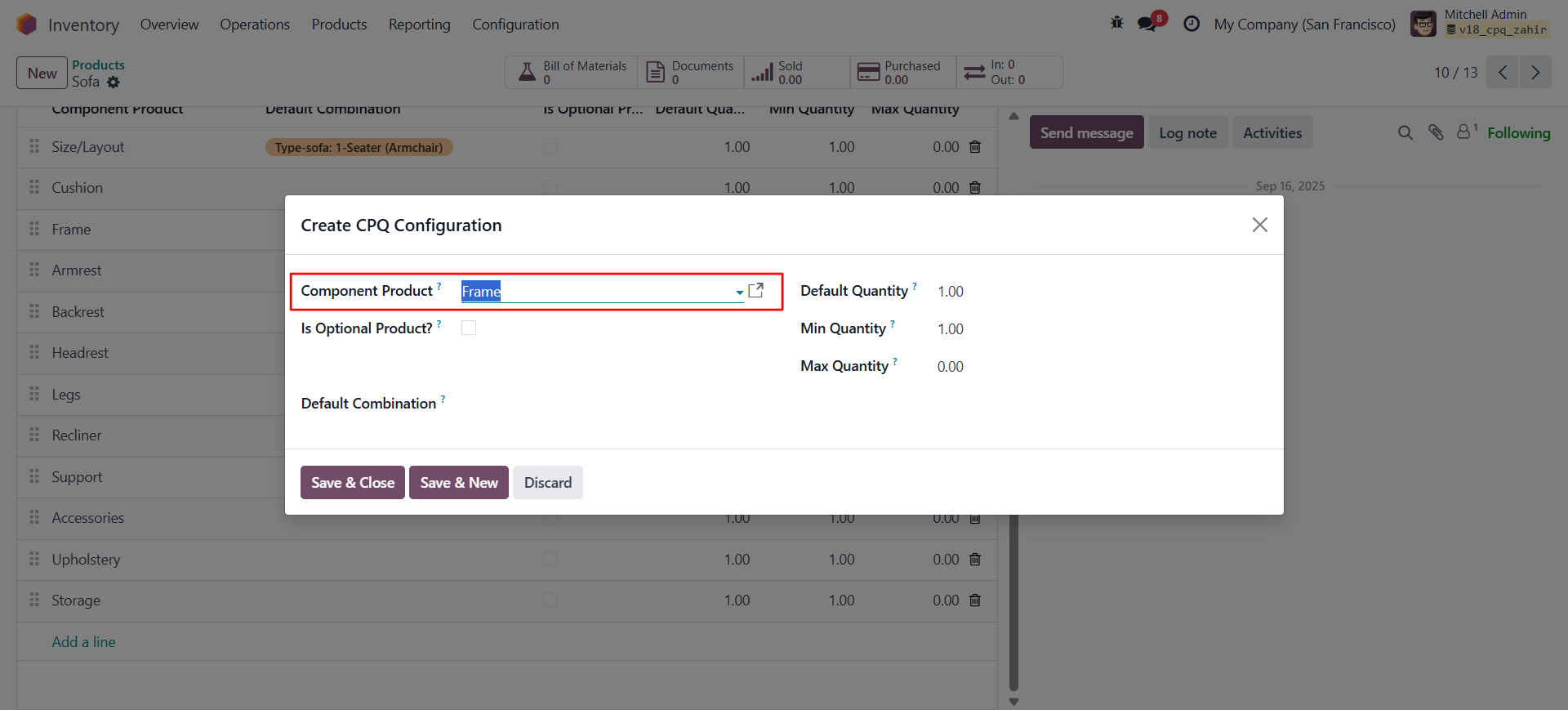
- Click Add a Line to include the desired component.
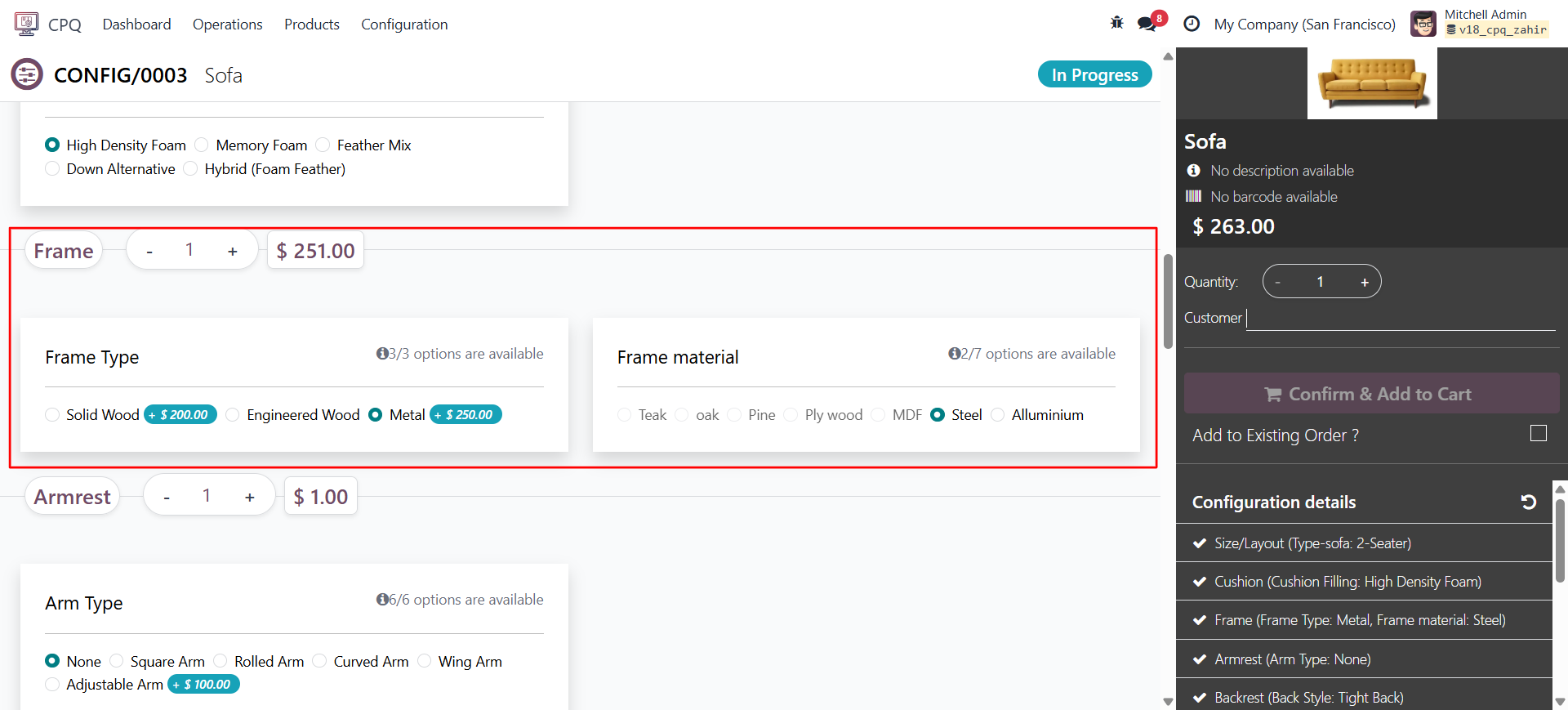
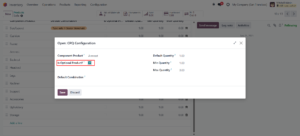
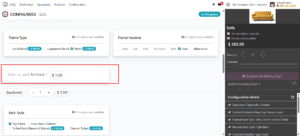
2. Is optional product?
The optional product feature allows a component to be added optionally. It is not mandatory for the product configuration, but it can be included if required.
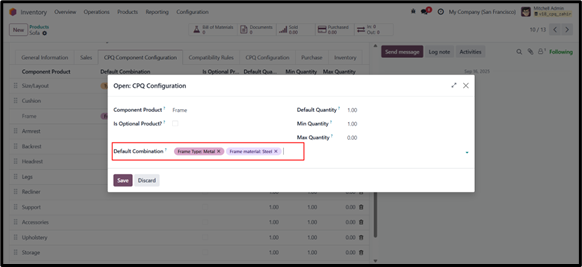
3. Default Combination
When configuring a product in the CPQ screen, this feature ensures that a default component combination is pre-selected.
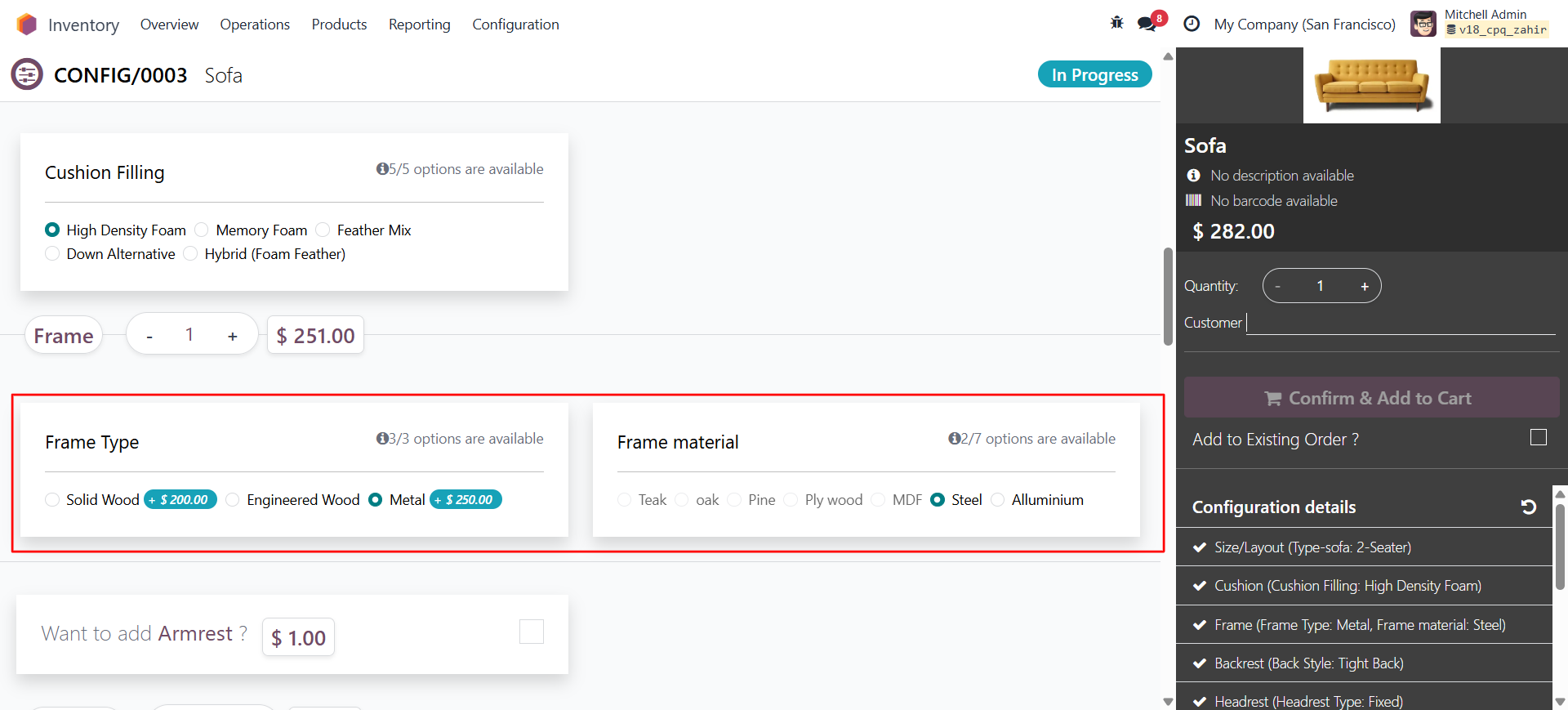
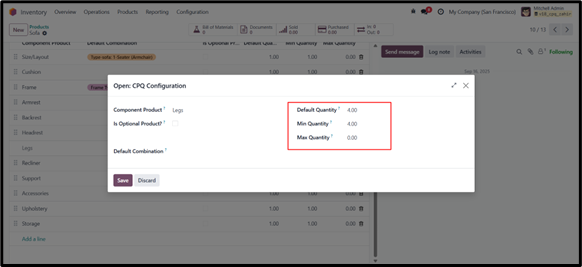
4. Default,Min, Max Quantity:
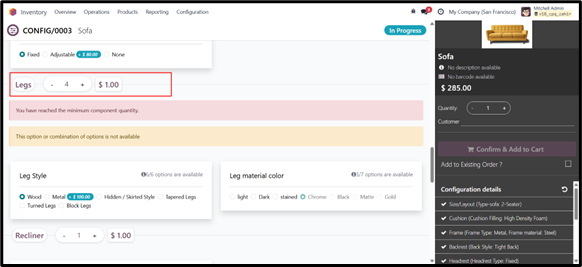
Default quantity means the system will pre-select this amount by default.
Minimum quantity is the least number of units that must be selected, and
Maximum quantity is the highest number of units that can be selected.
If the maximum quantity is set to zero, it means there is no limit (infinite).
7. Compatibility rules
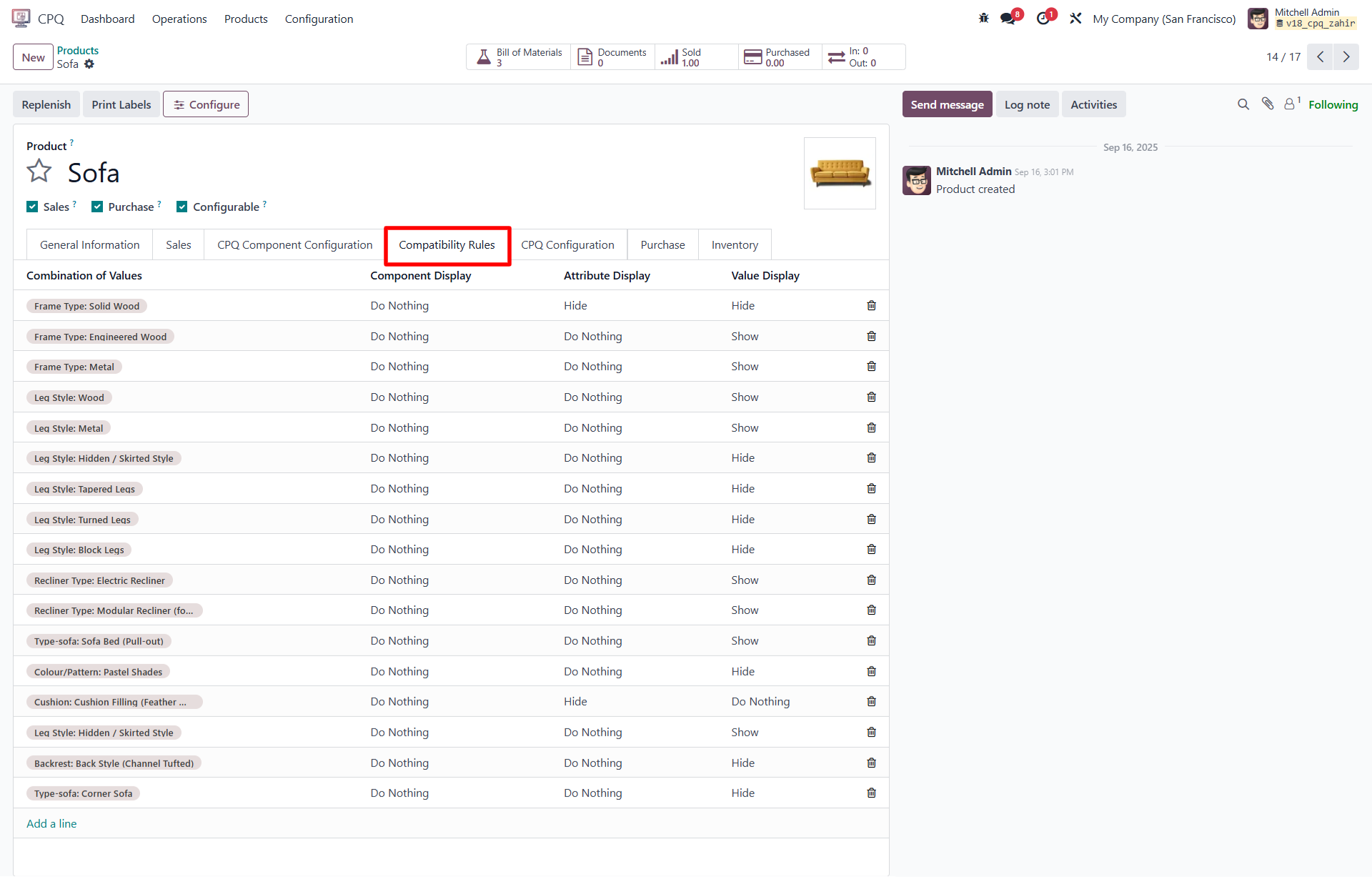
Compatibility rules in CPQ are used to control which components, attributes, or attribute values are visible or hidden based on specific selections made during product configuration. These rules help prevent invalid combinations and guide users toward compatible product configurations.
To access the Compatibility Rules:
- Open the desired Configurable product.
- Navigate to the Compatibility Rules tab within the product form.
Key Elements of Compatibility Rules:
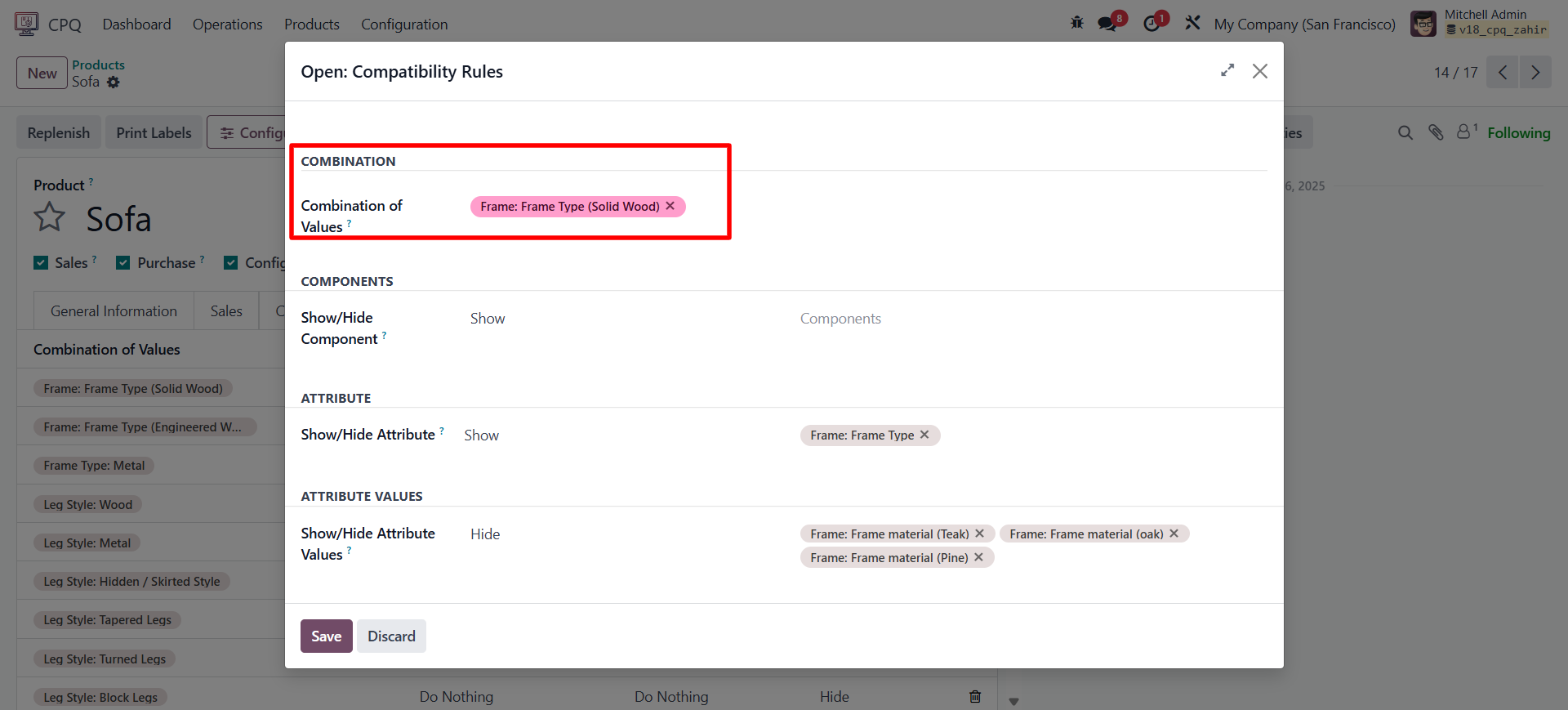
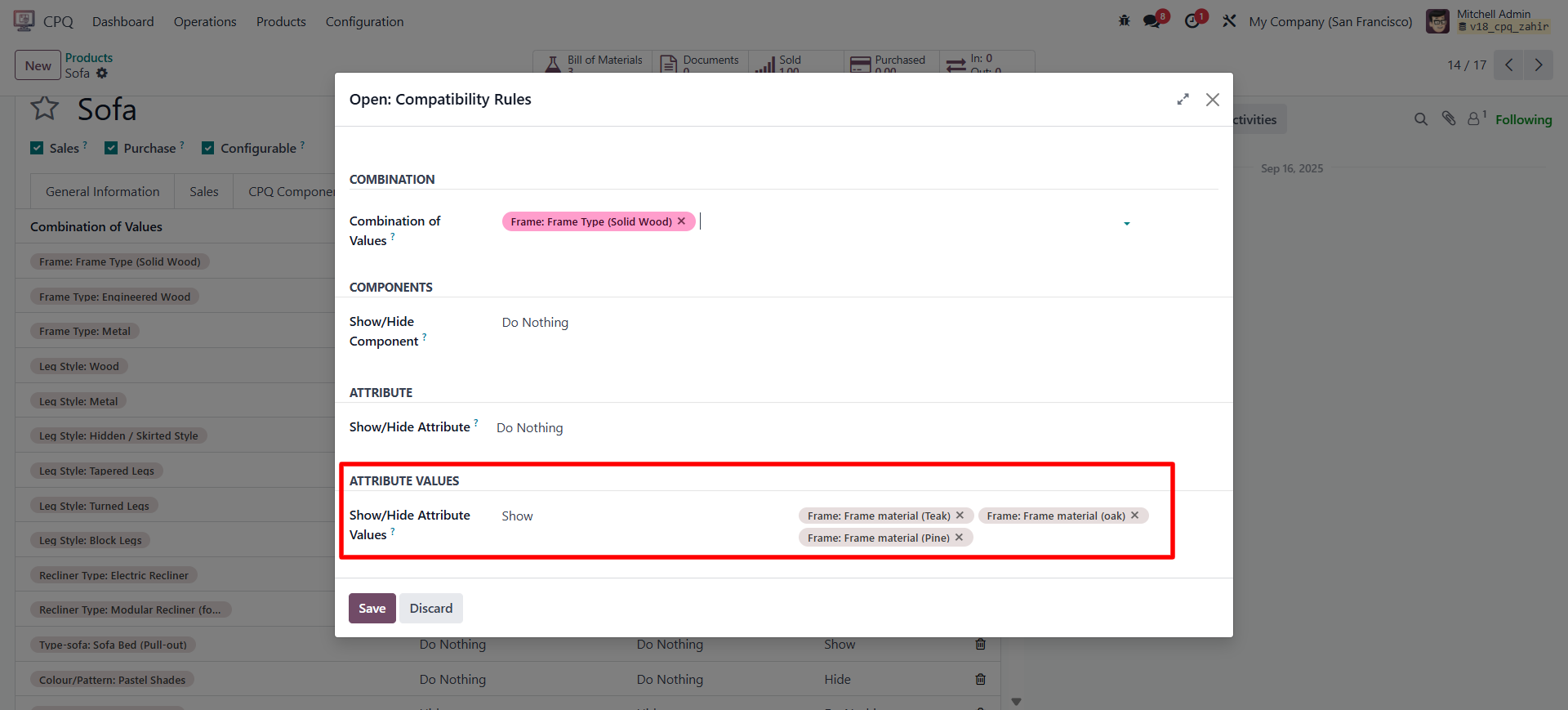
Combination of Values
- This acts as the trigger point to initiate a compatibility rule.
- You can define a specific combination of component values (e.g., Frame Type: Solid Wood) that will trigger the rule.
Components
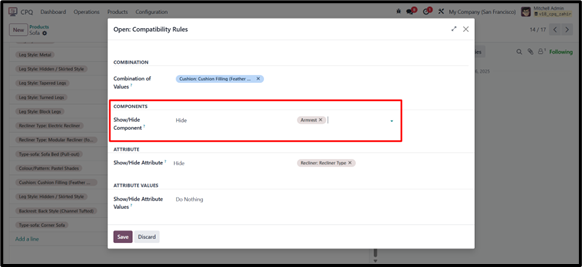
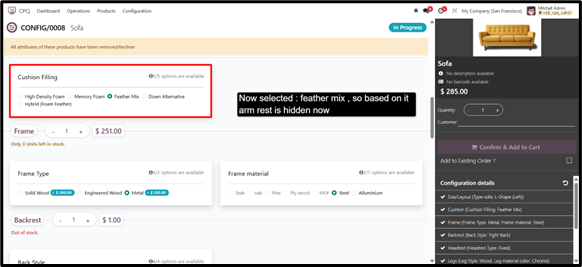
- Show/Hide Component:
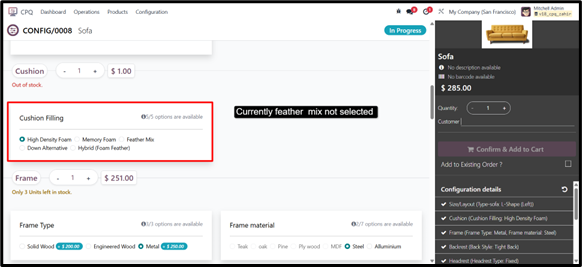
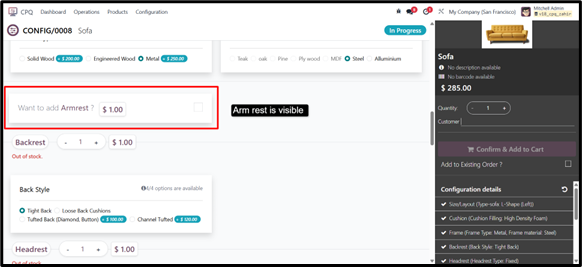
This feature allows you to show or hide optional product components based on the selected combination of values.
For example, when a certain frame type is selected, specific optional components such as “Armrest” or “Recliner Mechanism” can be hidden or displayed accordingly.
Attributes
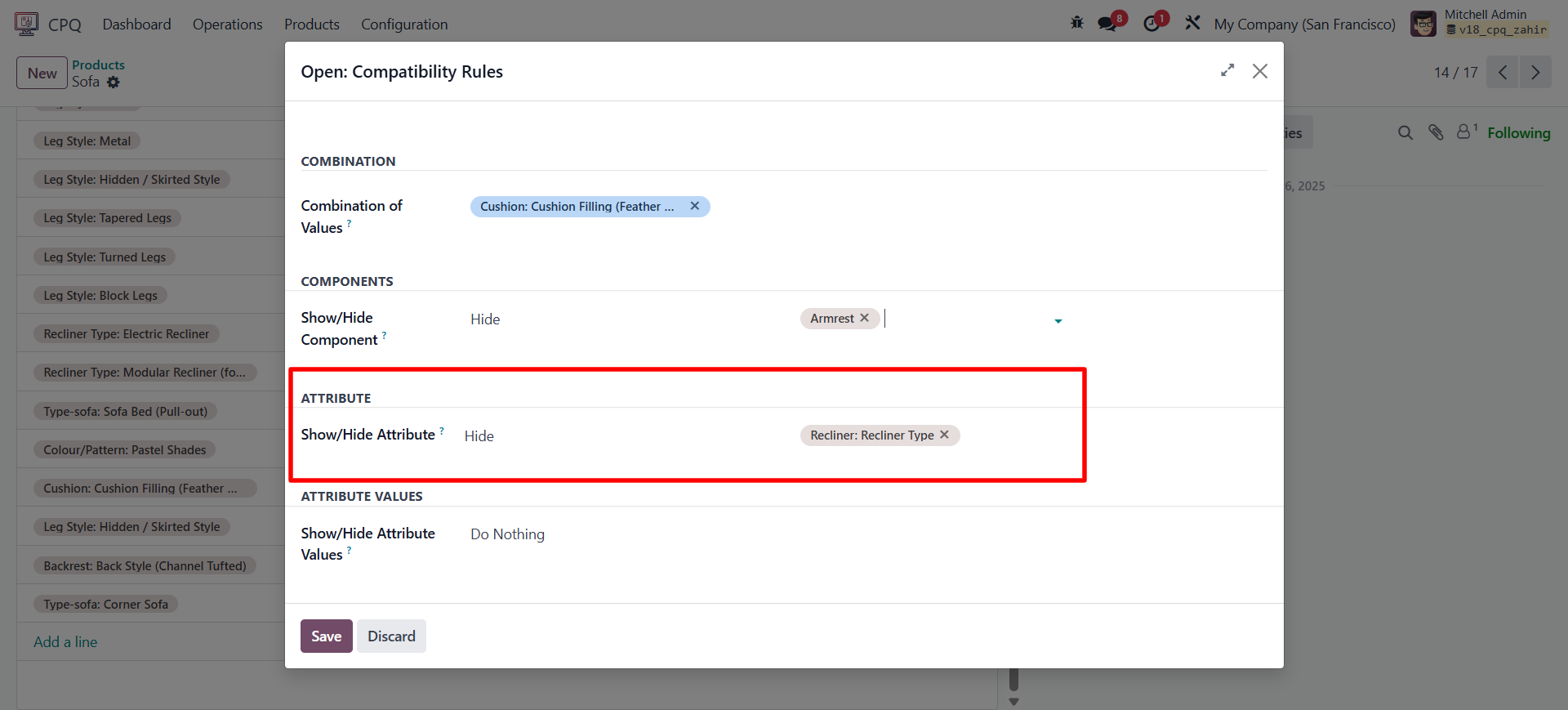
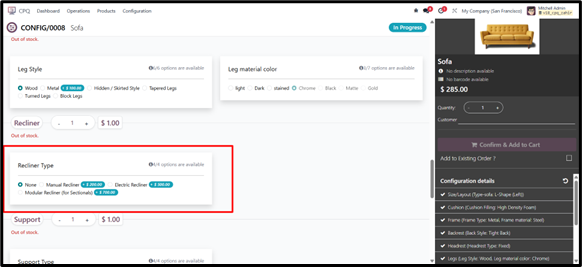
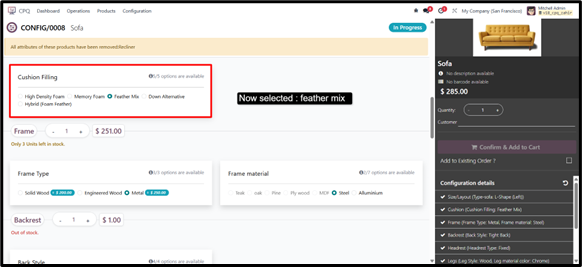
- Show/Hide Attribute:
This setting allows you to control the visibility of attributes belonging to both optional and mandatory products. For instance, if a specific frame type is
chosen, only relevant attributes for that frame will remain visible.
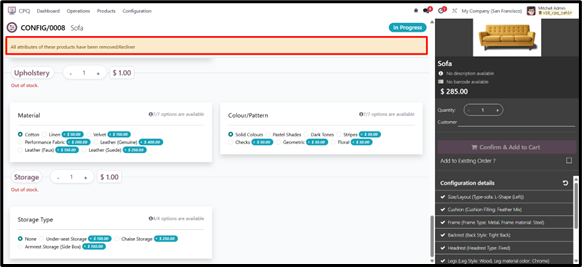
Attribute Values
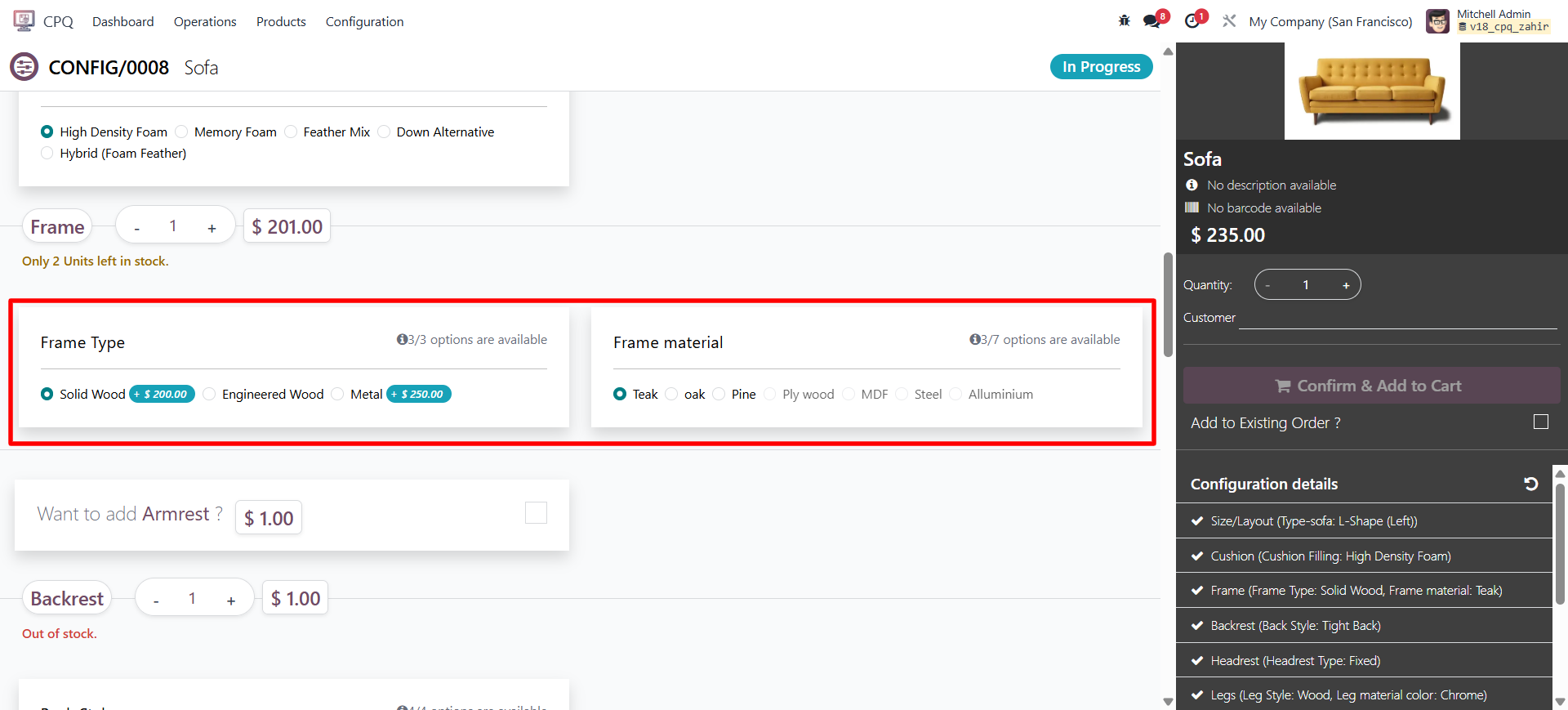
- Show/Hide Attribute Values:
This option enables you to show or hide attribute values for optional and mandatory components.
8. CPQ Configuration
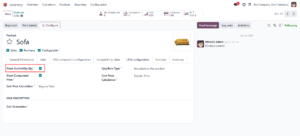
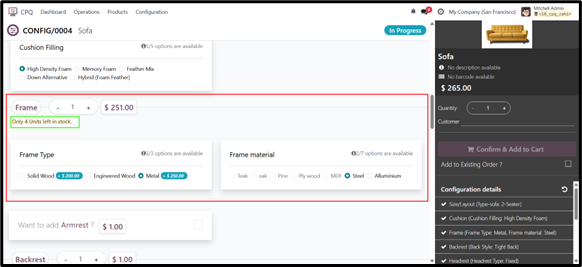
Show available Qty
This feature displays the available quantity of components or variants directly within the CPQ screen
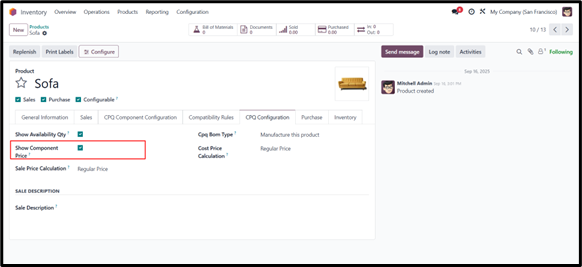
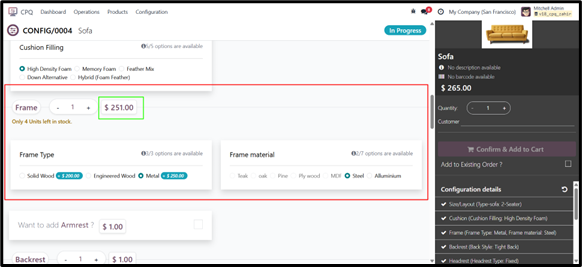
Show Component Price
With this feature, the CPQ screen displays the price of each component, and for items with variants, it shows the cost based on the selected variant.
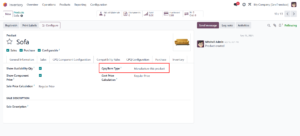
Cpq Bom Type:
There are two types of BOMs: Manufacture and Kit. Based on the selected BOM type, the Configurable product is either manufactured or created as a kit
Sale price calculation
There are two types of Sales price calculation methods —
- Regular Price: In this method, the total sale price of the sofa is calculated by adding the prices of all the selected components.
Each part of the sofa — like the frame, cushions, fabric, or legs — has its own price. The final sale price is the sum of all these component prices.- Example:
- Sofa Frame: 400
- Cushions: 150
- Fabric: 200
- Legs: 50
- Total Sale Price = 400 + 150 + 200 + 50 = 800
- Example:
- Fixed Price: In this method, the sofa has a single fixed sale price — for example, a standard 3-seater sofa might be priced at $1,000.
This price remains the same regardless of the individual parts included. However, if you choose optional add-ons, like an extra cushion or a recliner function, their costs will be added on top of the fixed price.- Example:
- Fixed Sofa Price: 1,000
- Optional Recliner Feature: +200
- Optional Cushion Set: +50
- Total Sale Price = 1,000 + 200 + 50 = 1,250
- Example:
Cost Price calculation
- Regular Price:
- In this method, the cost price is a fixed value defined for the configurable product.
- It does not change based on the selected components or variants.
- Example: Cost Price (Fixed) = 500. Regardless of the customer’s selection, the cost remains 500.
- Dynamic Price:
- In this method, the cost price is calculated based on the selected variants or components.
- Each component can have its own cost, and the total cost is the sum of the selected parts.
- Example:Frame: 200, Cushions: 80, Fabric: 120, Legs: 40
- Total Cost Price = 200 + 80 + 120 + 40 = 440
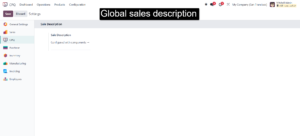
Sales Description
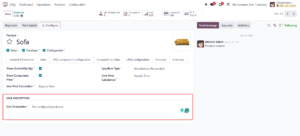
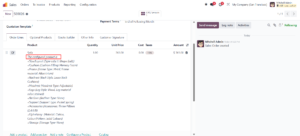
The sales description is the text that appears on a quotation or sales order for a configurable product. There are two types of sales descriptions:
- Global Sales Description
- A default description that applies to all configurable products.
- If a Configurable product does not have its own description, the global sales description will be used.
- Product-Specific Sales Description
- A customized description is defined individually for each Configurable product.
- This overrides the global sales description whenever it is set.
9. Dynamic Operation
The Dynamic Operation feature allows you to define manufacturing operations dynamically for configurable products. This ensures that specific operations can be automatically linked based on the selected component or Component value during configuration.
To enable and add dynamic operations:
1. Go to Inventory → Products → Product Variants.
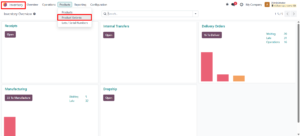
2. Open the desired product variant.
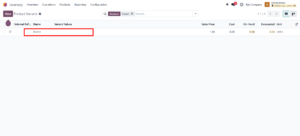
3. Navigate to the CPQ Configuration tab.
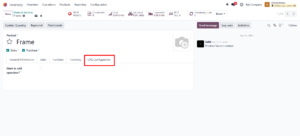
4. Enable the option “Want to add operation?”.
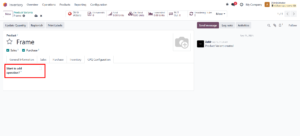
5. Once enabled, you can define one or more operations for that variant.
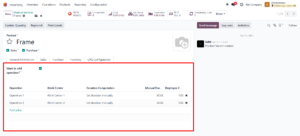
Each operation can represent a specific manufacturing step (e.g., Cutting, Stitching, Polishing). These operations can later be used in the Configurable product’s Bill of Materials (BoM) or Manufacturing Order (MO), allowing the system to dynamically adapt production workflows based on the configuration selected in CPQ.
Example:
If the user selects Leather Upholstery as a variant, enabling this option allows the system to automatically add a Leather Stitching operation to the BoM.
10. Configuring a Product
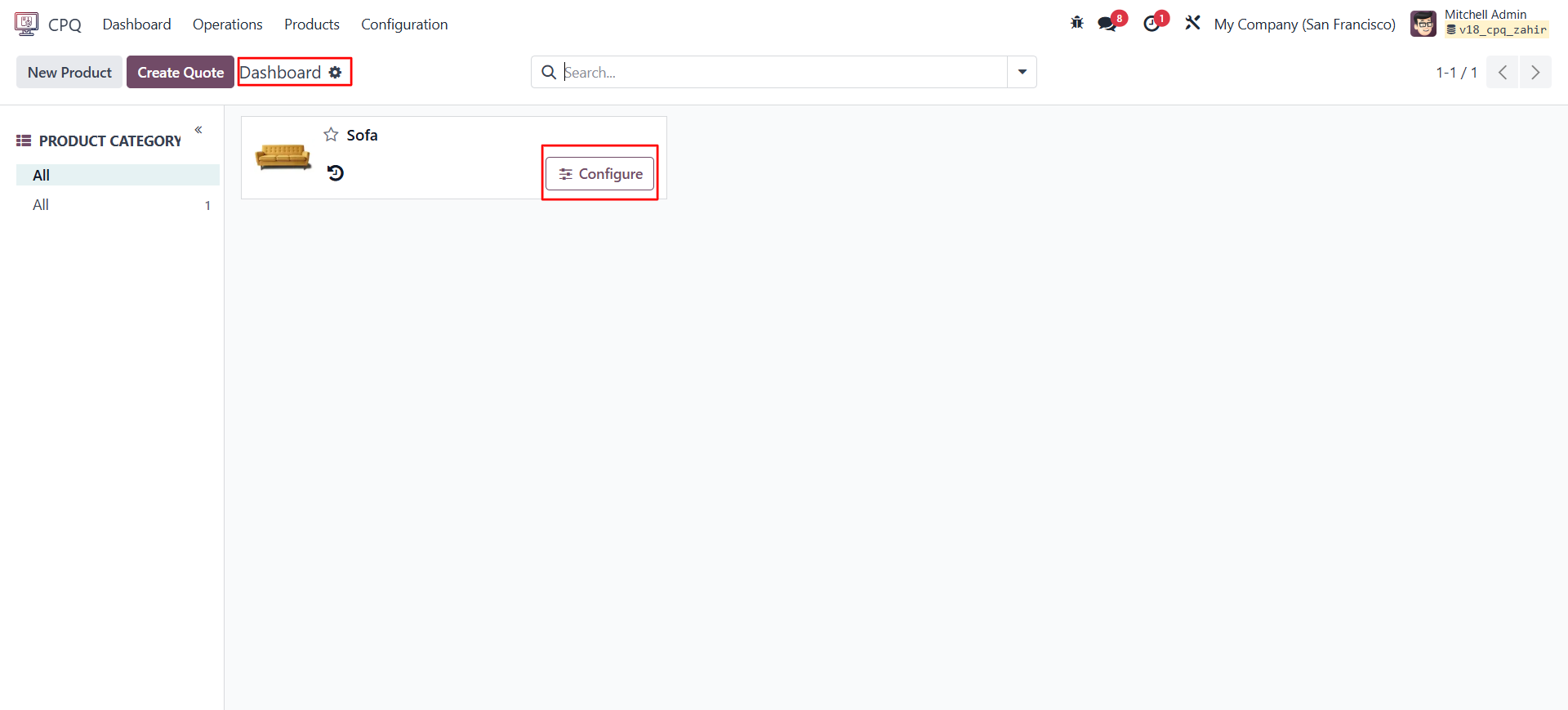
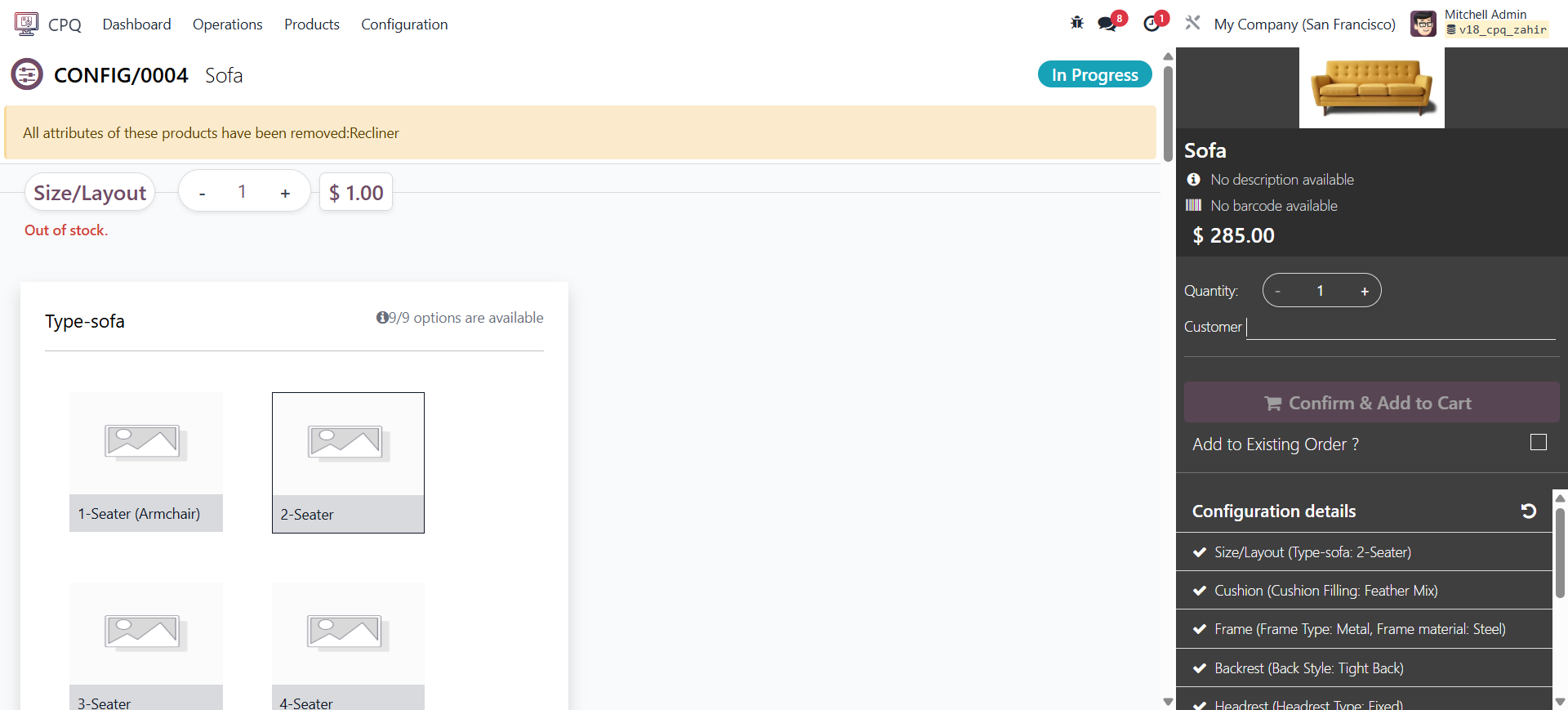
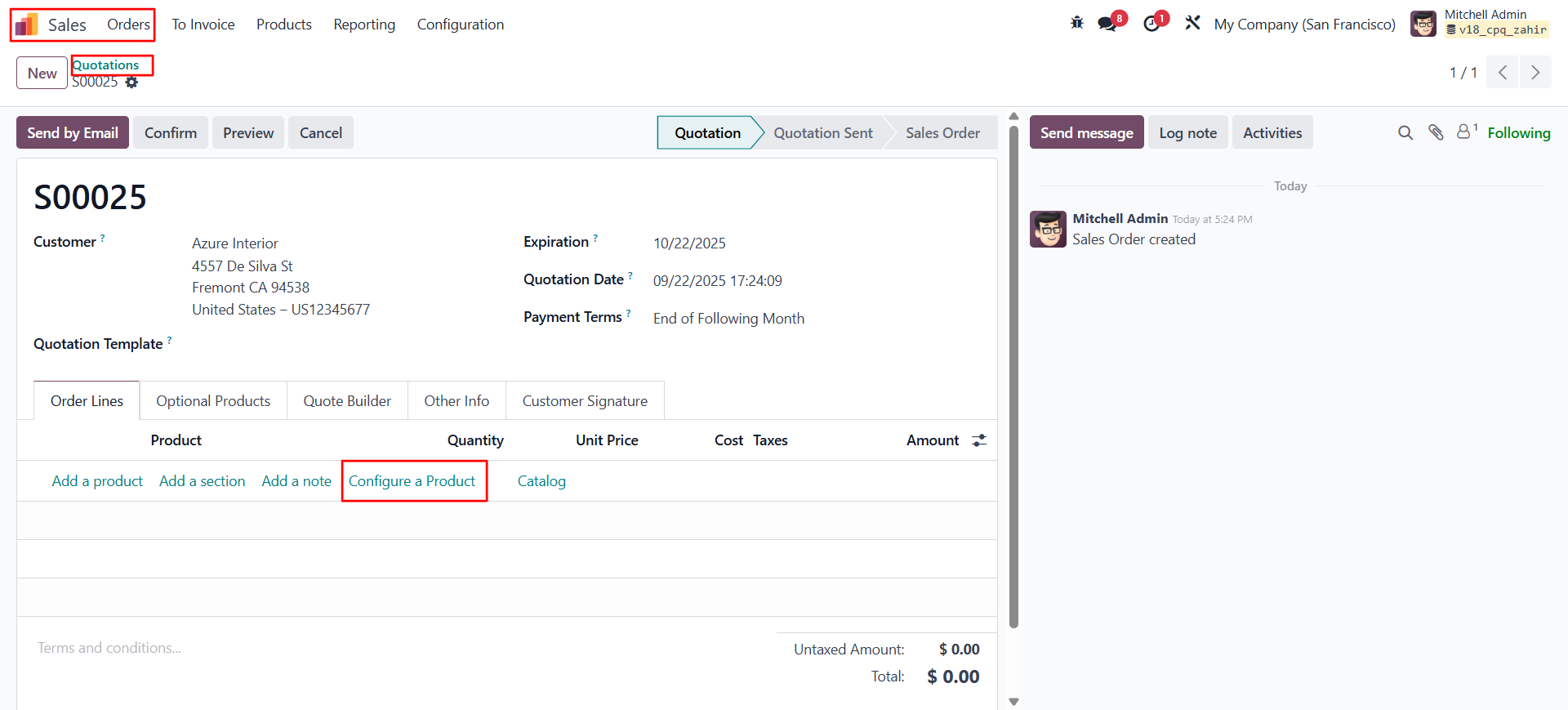
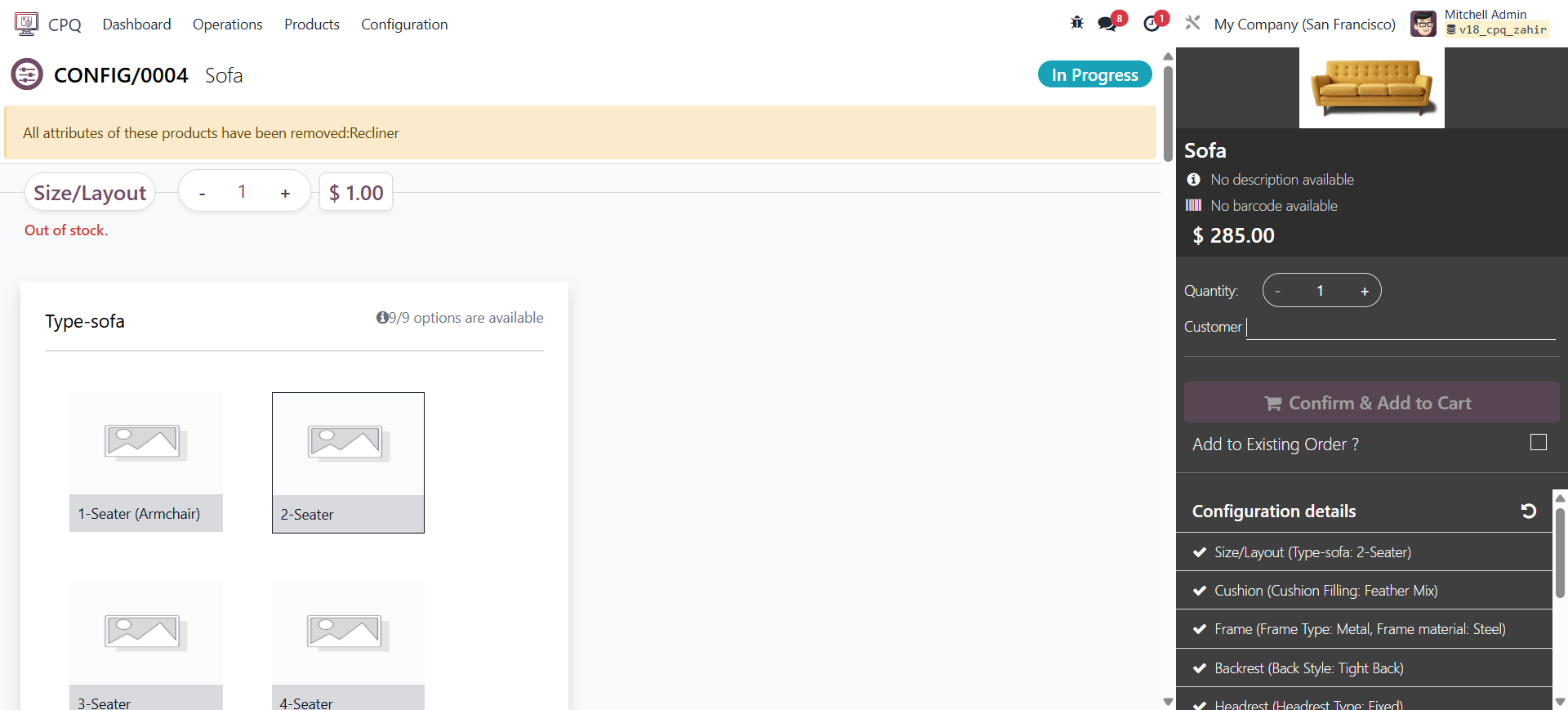
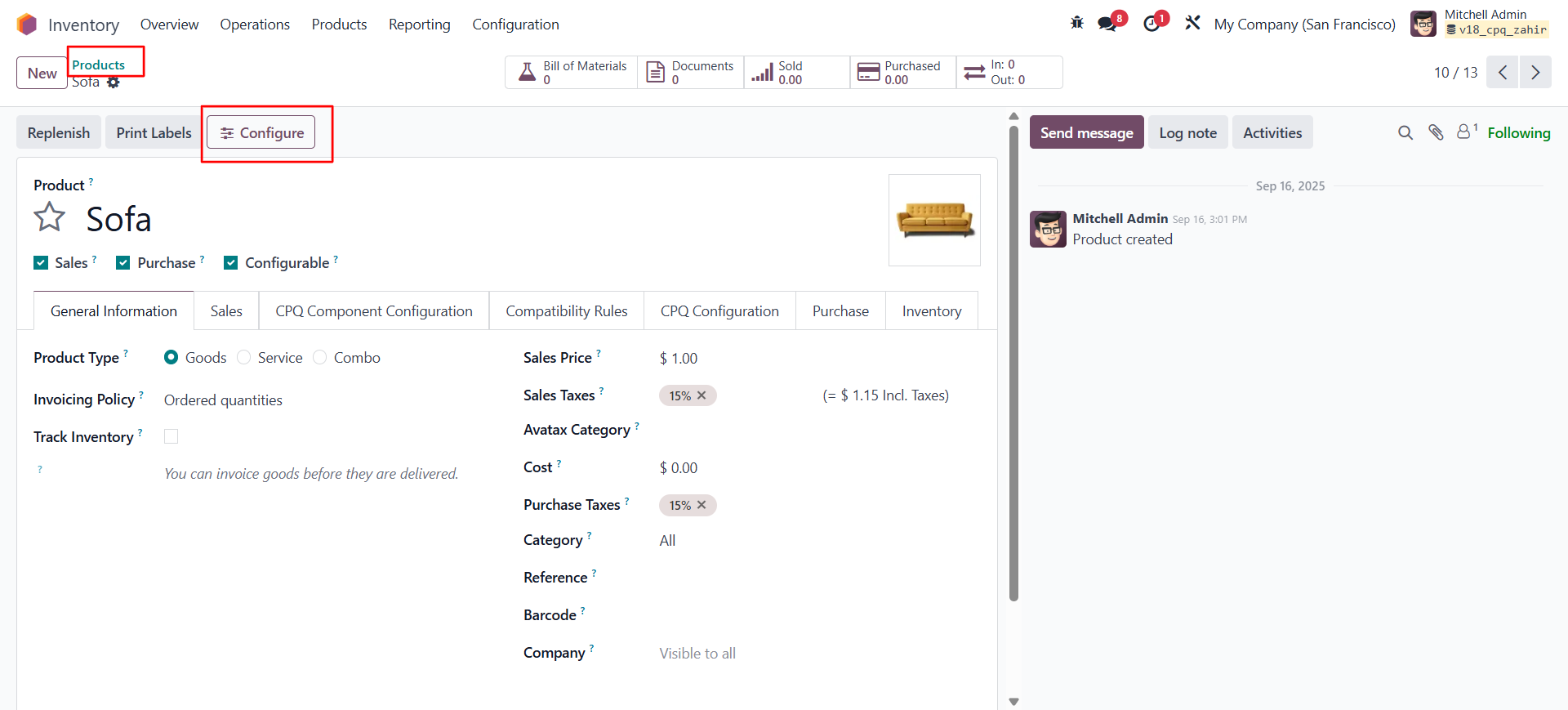
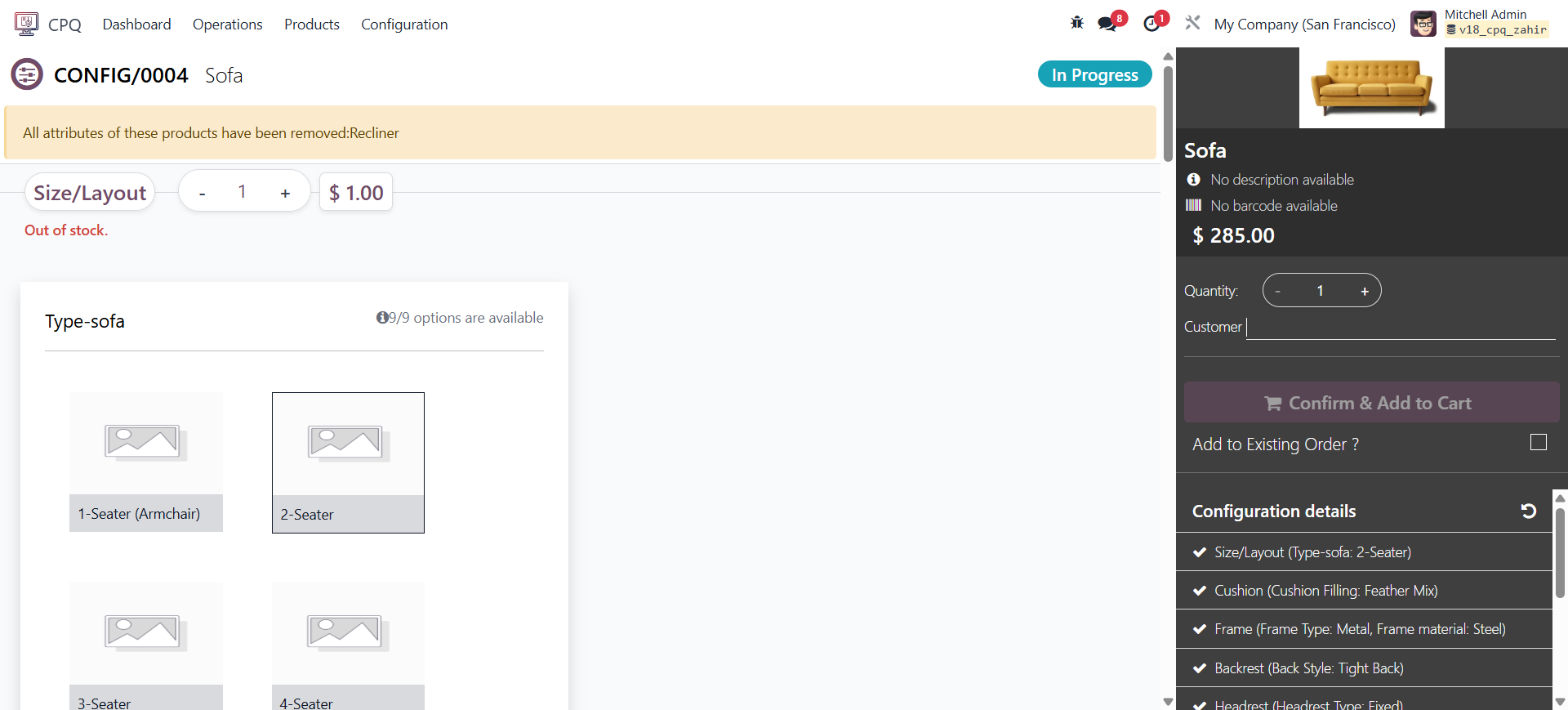
A Configurable product can be configured from multiple places in Odoo:
-
- CPQ Screen – Configure products directly from the CPQ dashboard.
-
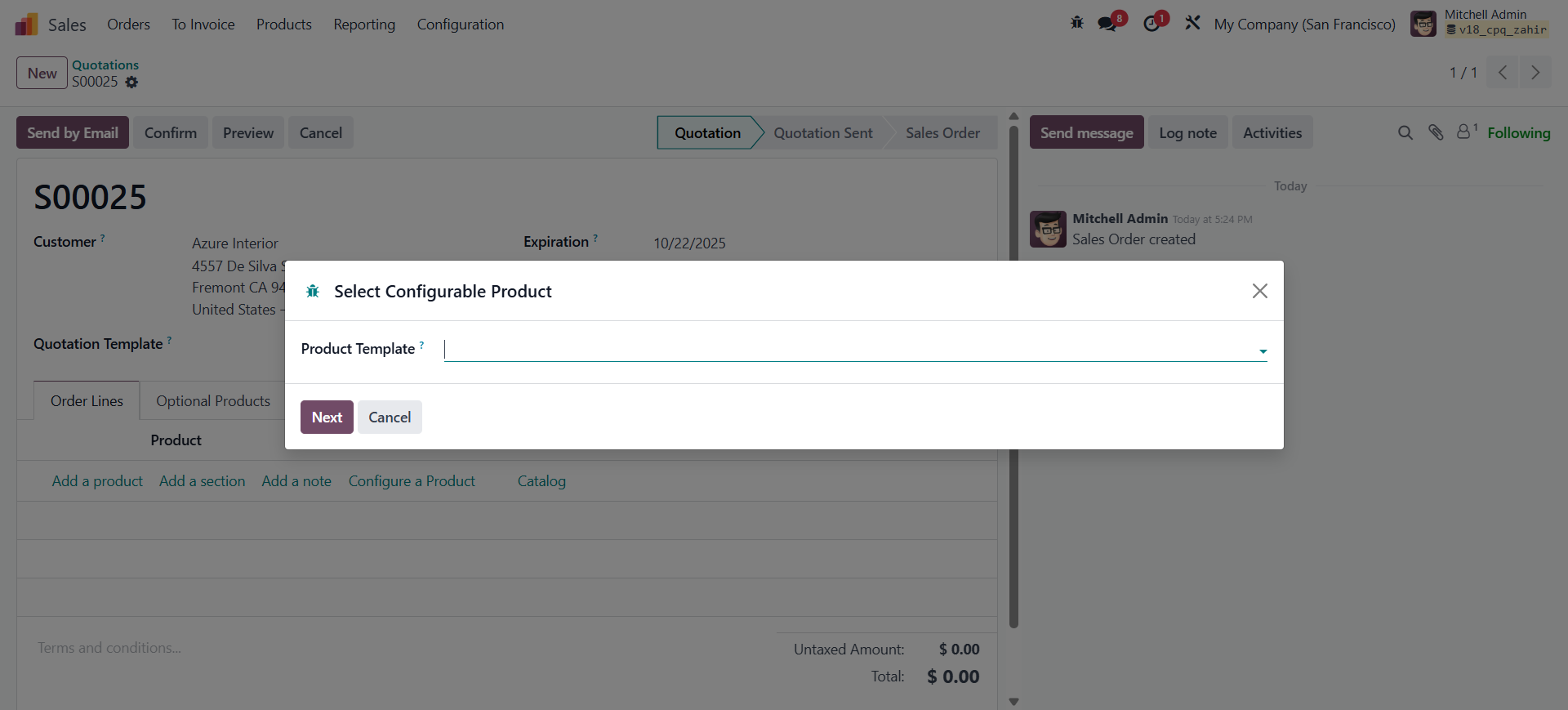
- Sales → Quotation / Sales Order – Configure products while creating or editing a quotation or sales order.
-
- Product Form – Configure products from the product form, provided the product is marked as configurable.
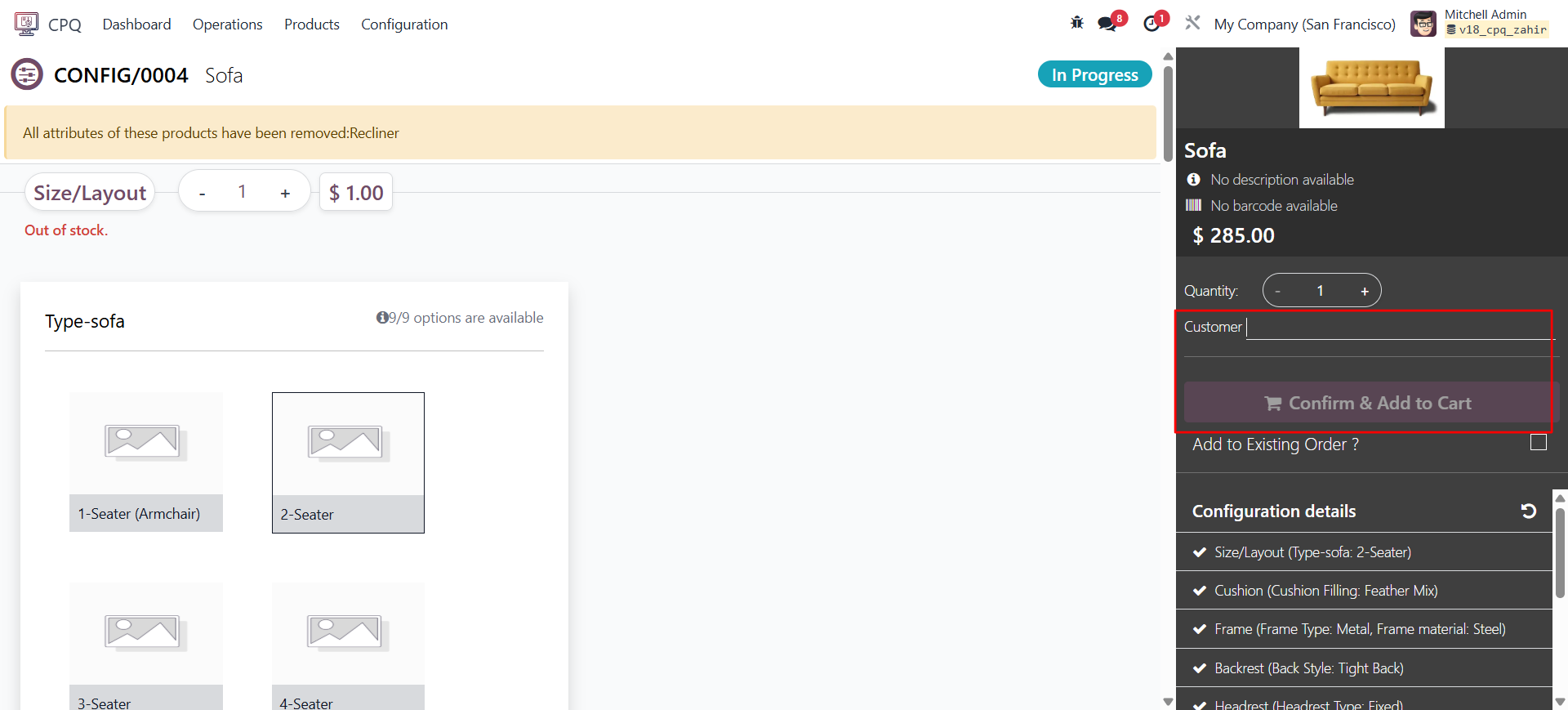
- Customer Selection: Without adding a customer, you cannot proceed to create or confirm & add a quotation to the cart. Selecting a customer ensures that the system applies the correct pricelist, taxes, and discounts configured for that specific customer.
- Pricelist
- The CPQ module is fully compatible with Odoo’s Pricelist functionality.
- Once a customer is selected, the system automatically fetches and applies the corresponding pricelist assigned to that customer.
- All product prices displayed in the CPQ configuration screen will reflect the
selected pricelist — including currency, discounts, and any pricing rules defined in Odoo
11. Quotation & Output
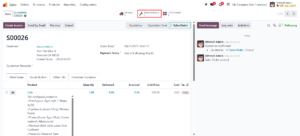
When you configure a Configurable product, add a customer, confirm the configuration, and add it to the cart, the system generates a quotation. Based on this quotation, the corresponding Bill of Materials (BoM) is automatically created.
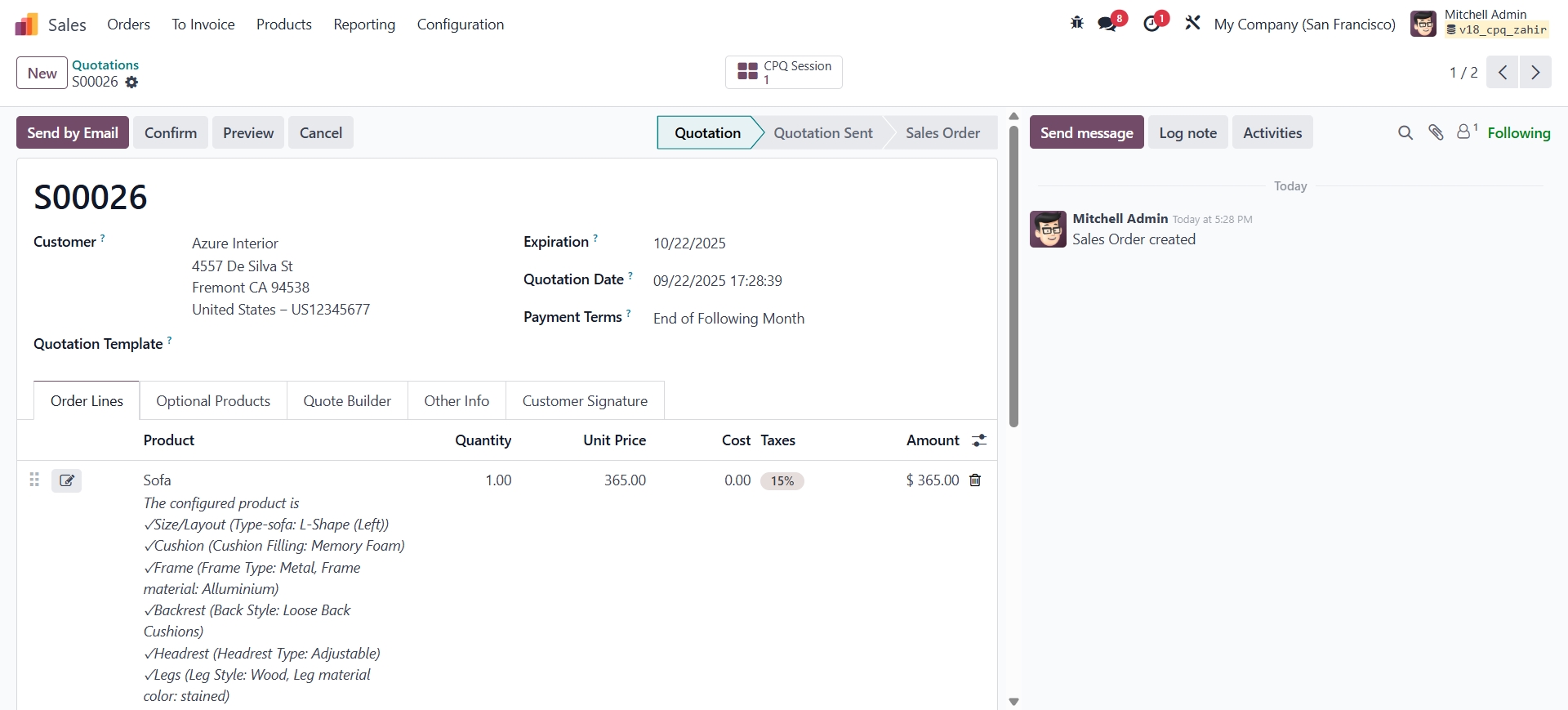
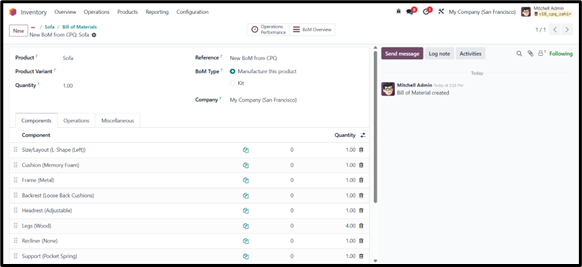
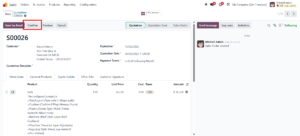
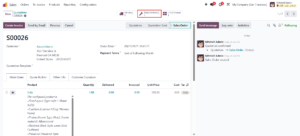
Once the sales order is confirmed, a Manufacturing Order (MO) can either be created manually or triggered automatically. To enable automatic creation, you need to set the Make To Order (MTO) route in the product form under the Inventory tab.
12. Odoo CPQ - eCommerce
The CPQ eCommerce feature allows portal users to configure and order Configurable products directly from the website.
It’s only available for portal users (not public visitors).
11.1 Enable Website CPQ
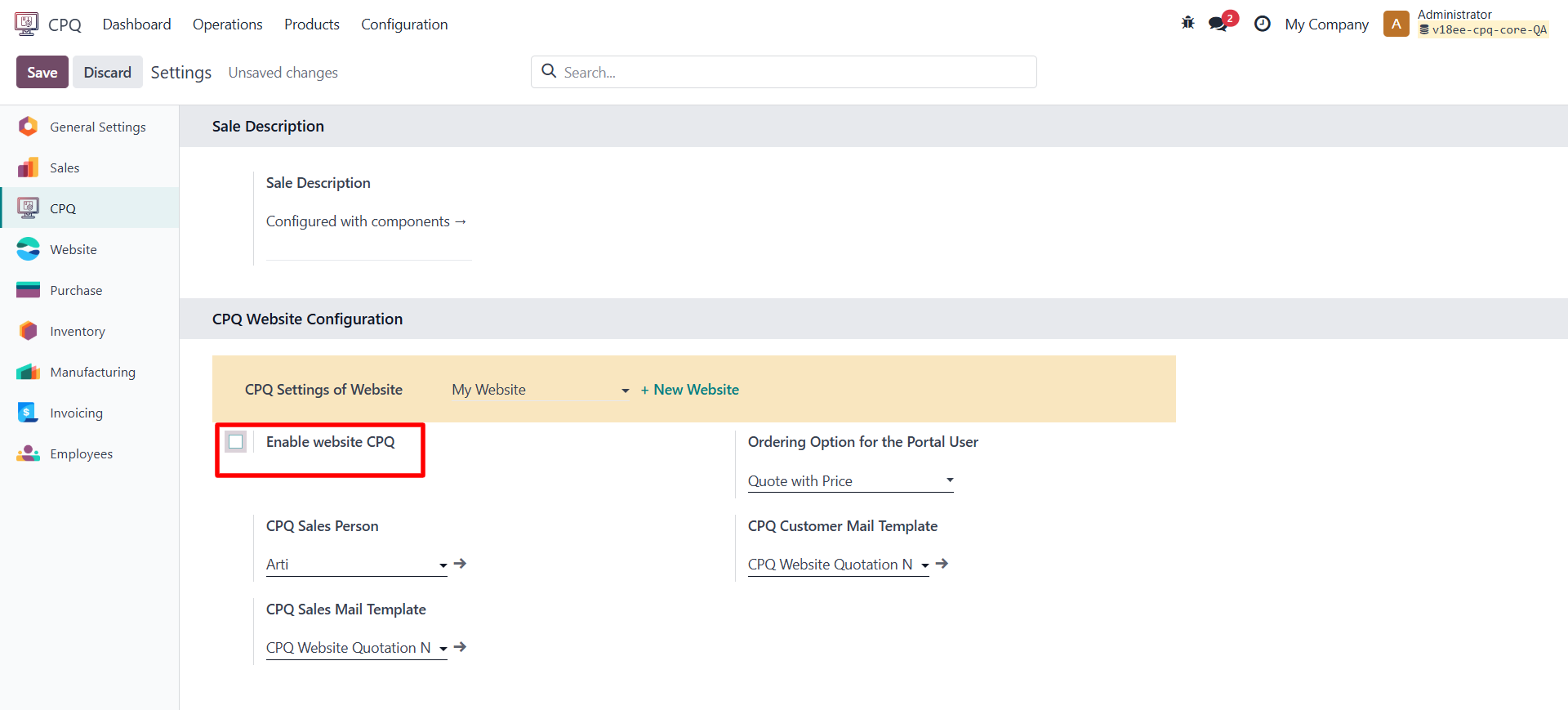
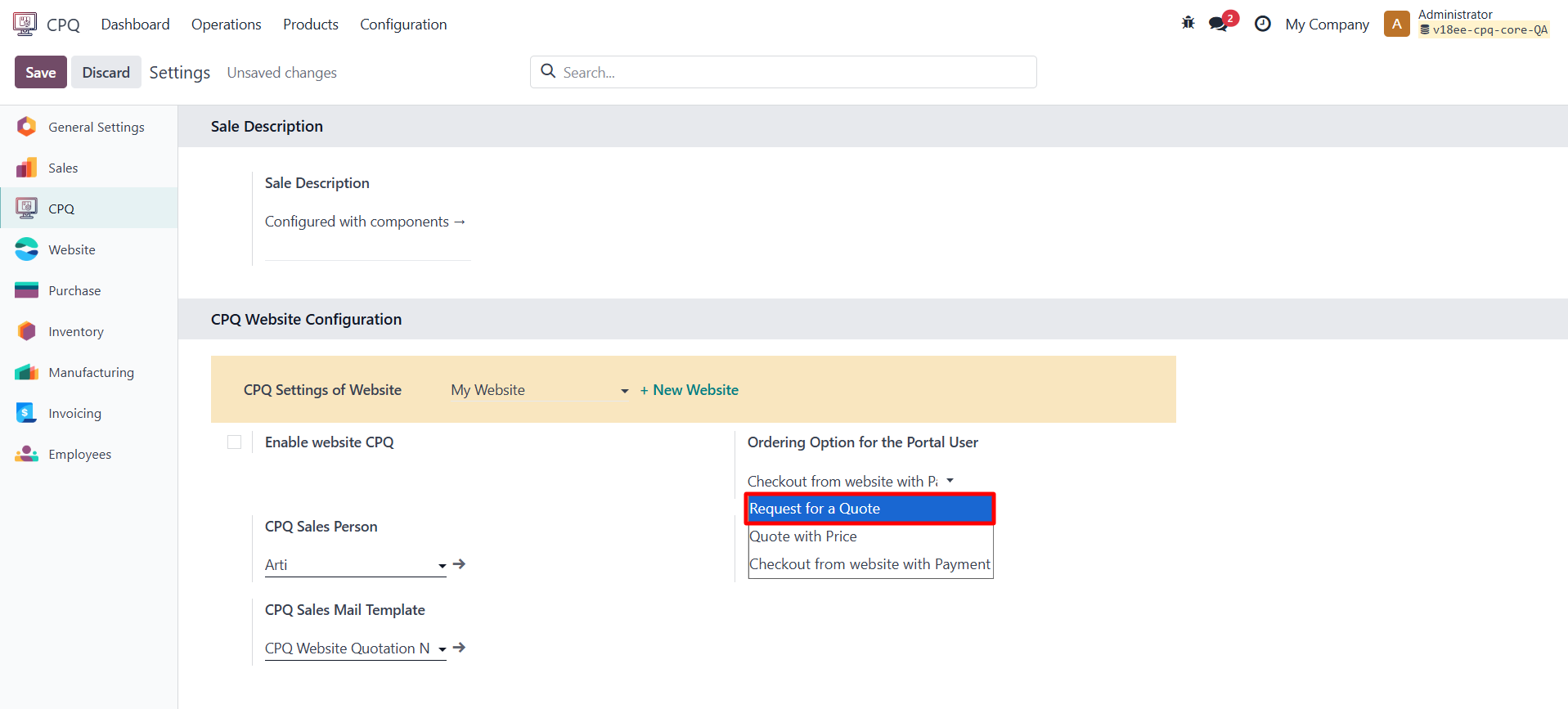
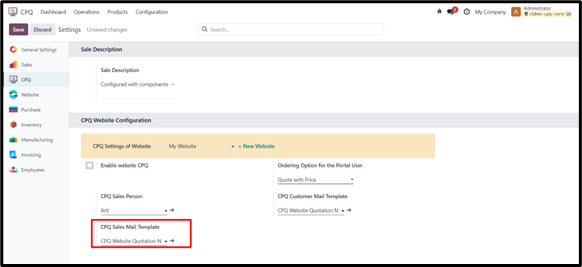
- Go to CPQ → Configuration → Settings and enable the option “Enable Website CPQ” in the CPQ Website Configuration tab.
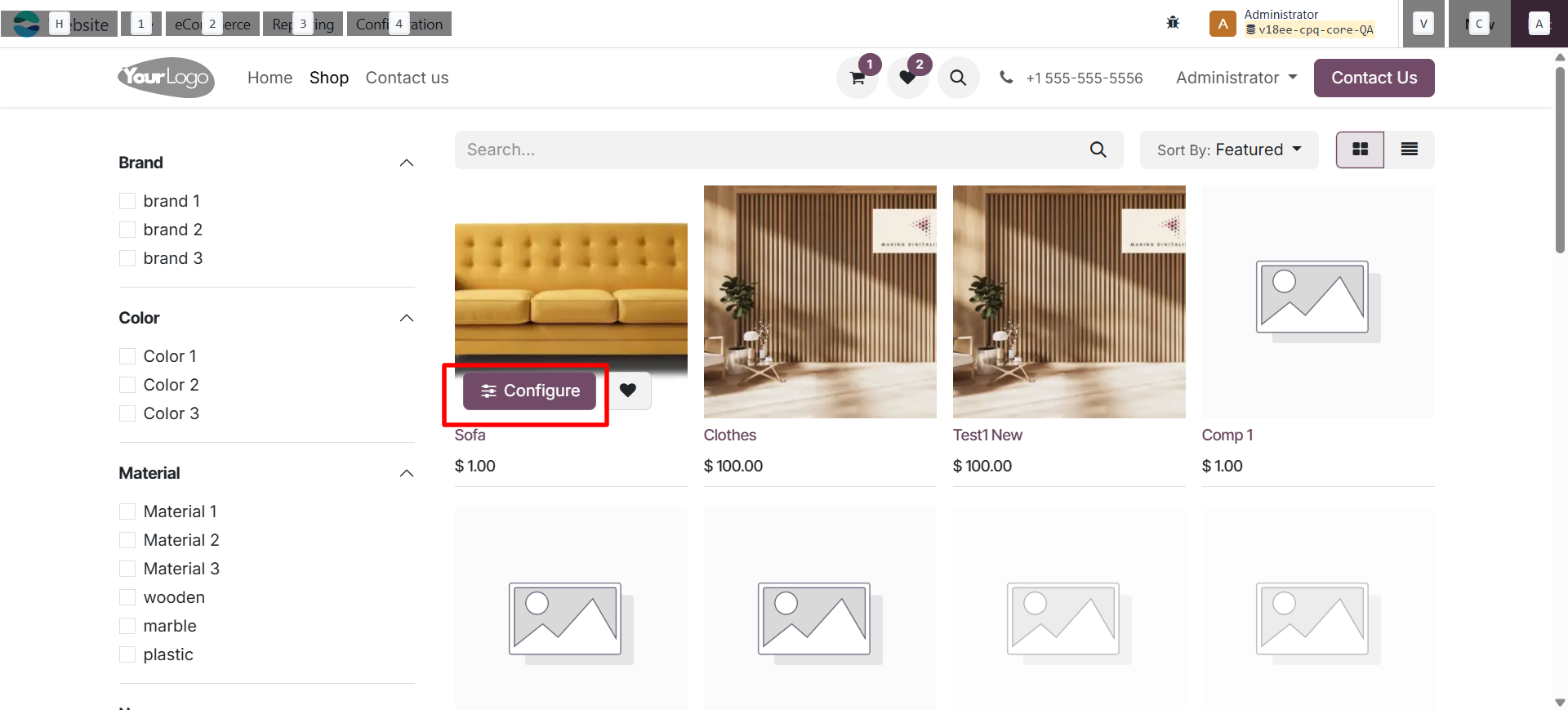
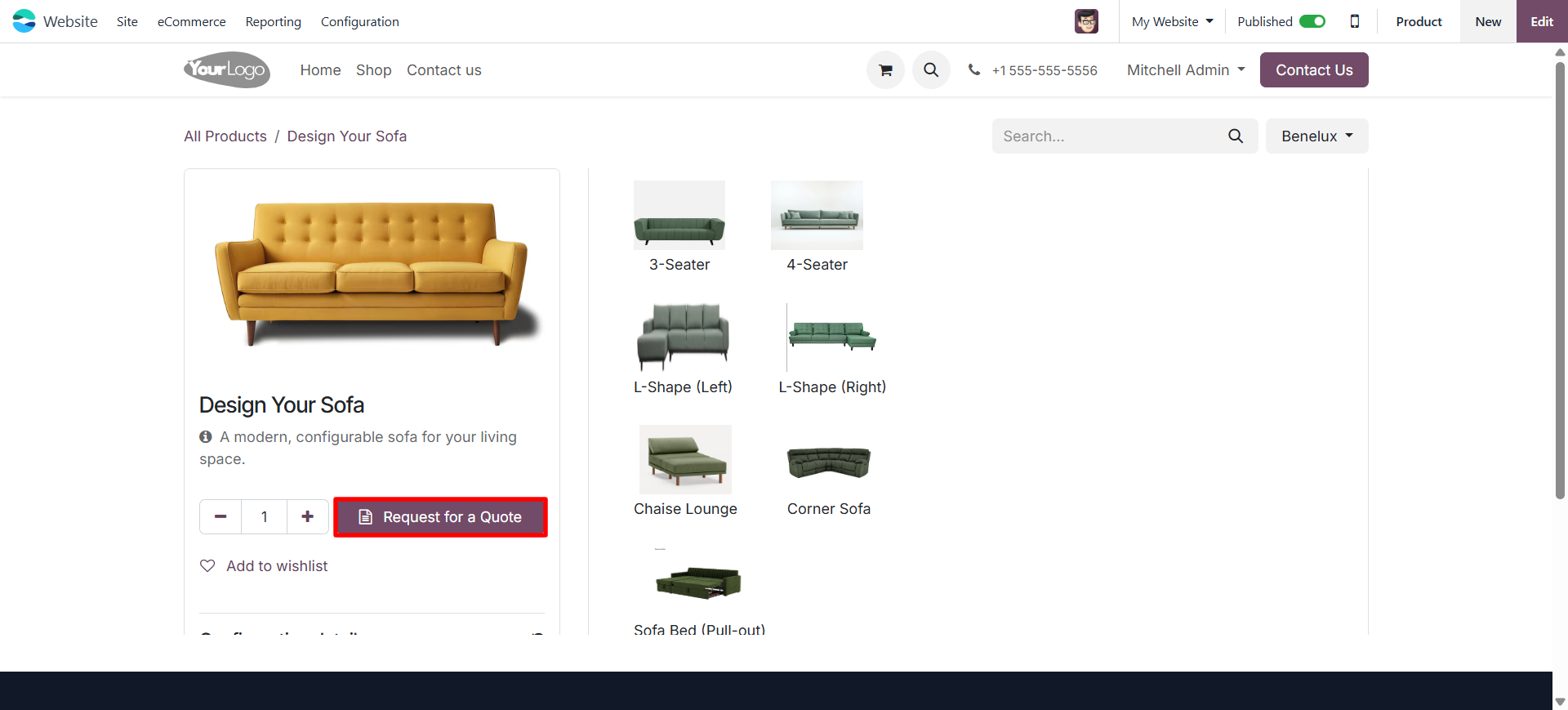
- Once enabled, configurable products on the website will show a Configure button.
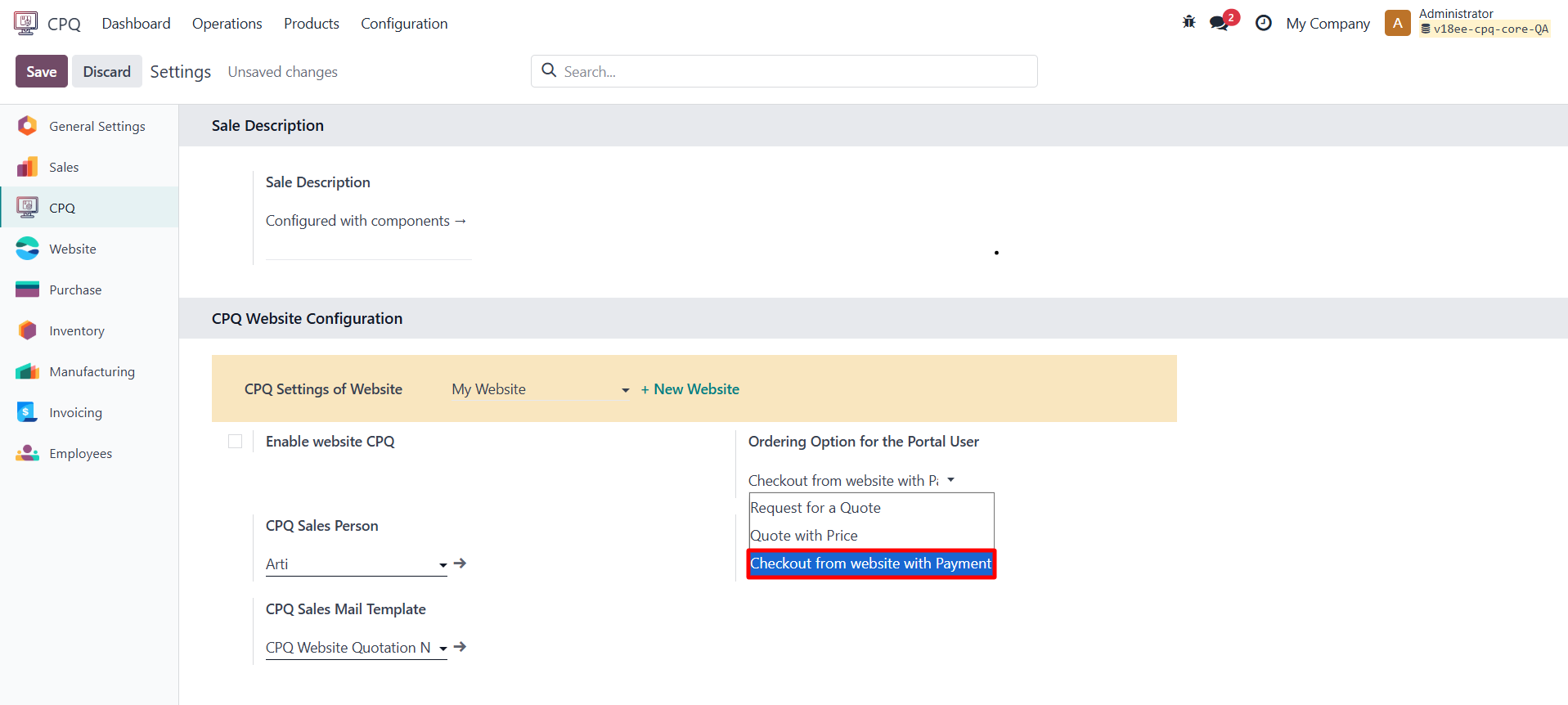
11.2 Ordering Options for Portal Users
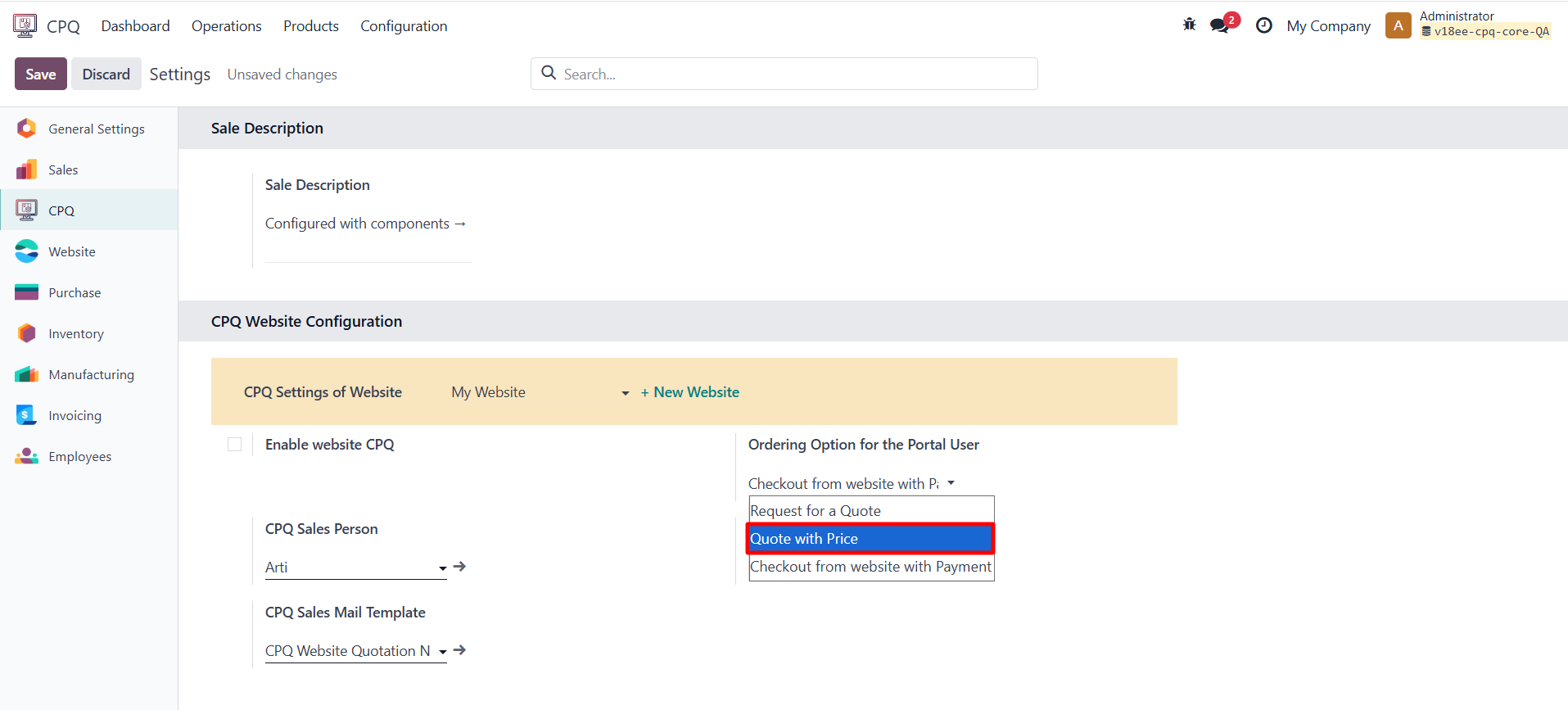
you can choose You how customers place their orders after configuration:
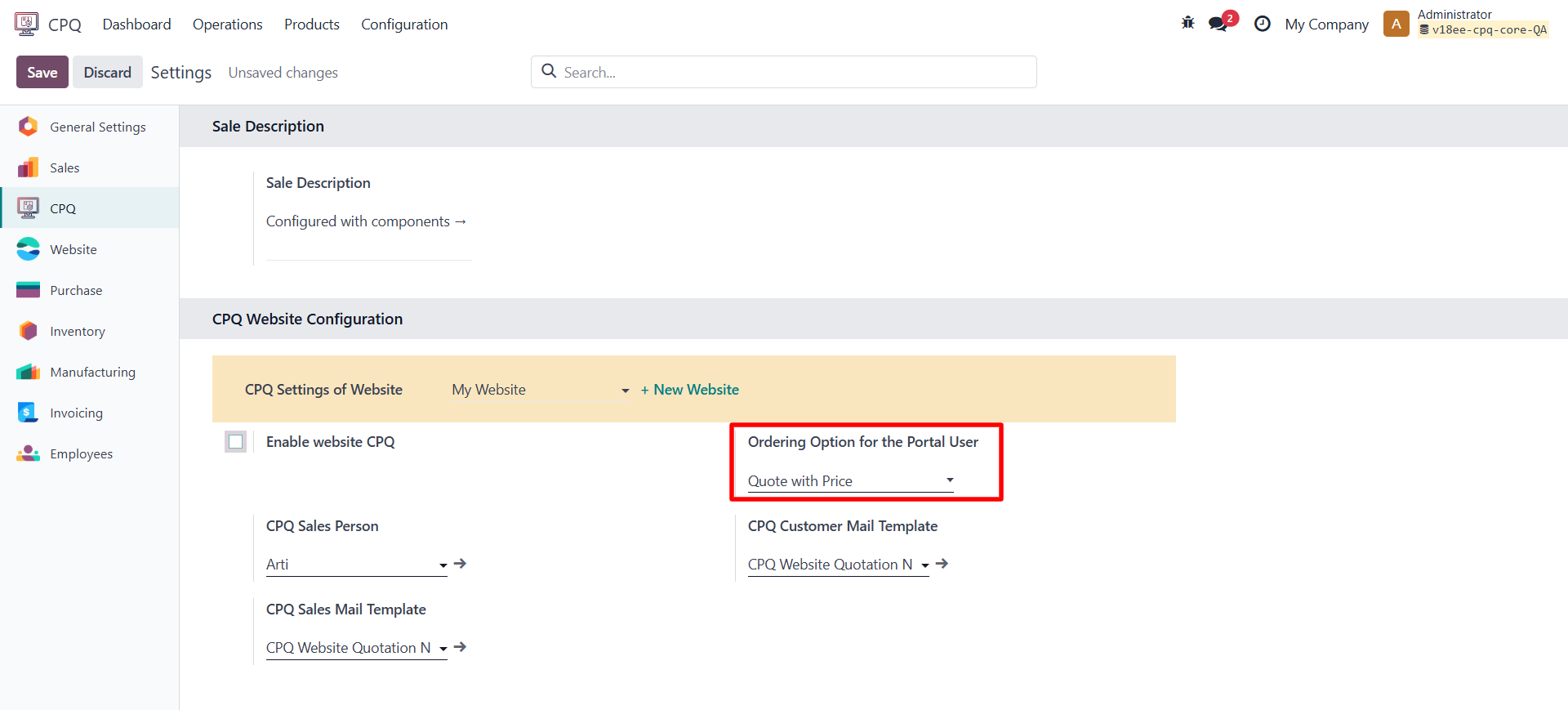
1. Request for Quotation
- User configures the Configurable product → clicks Request for Quotation.
- An RFQ is created (no prices shown).
- The customer receives an email confirmation.
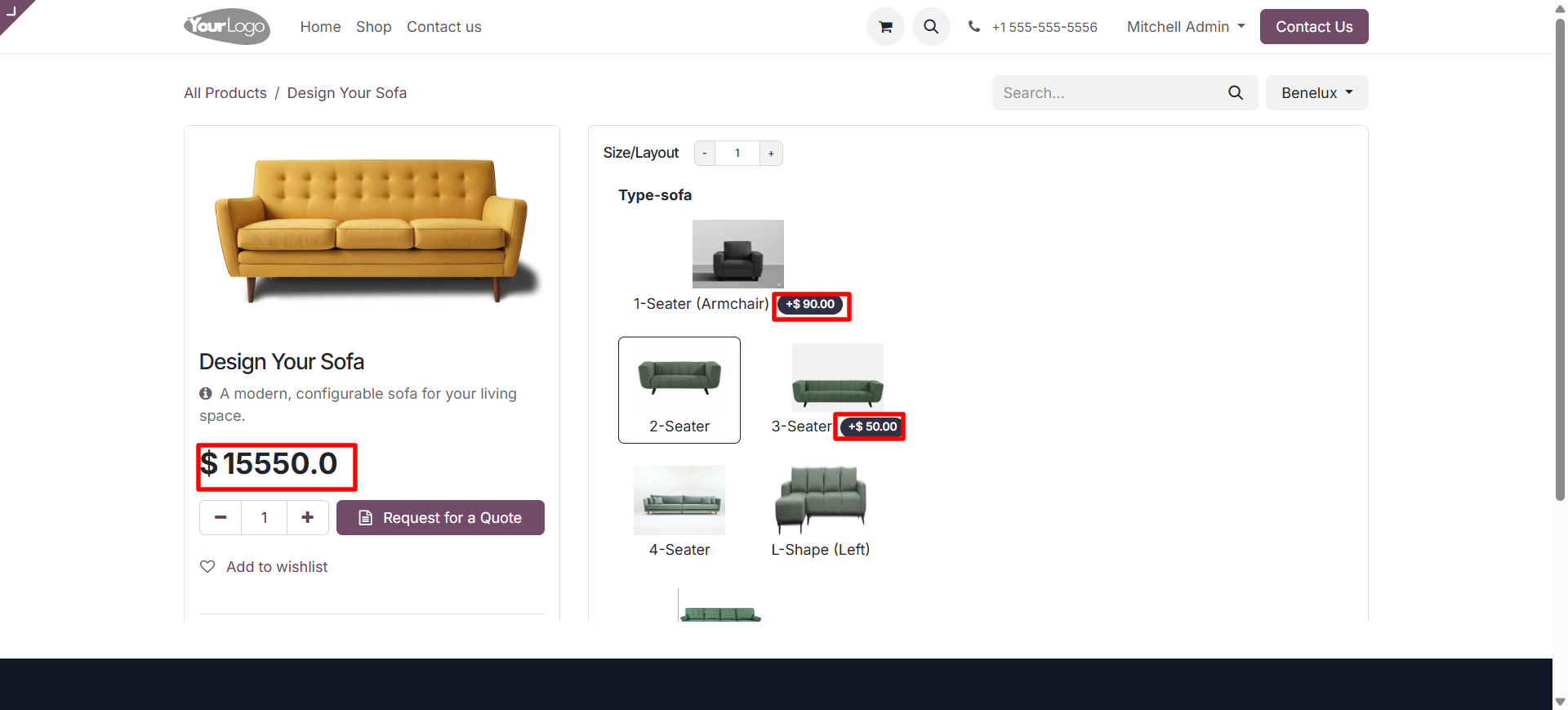
2. Quotation with Price
- The user can see the Configurable product price and generate a quotation directly.
- The quotation will include all selected components and total pricing.
- A standard email notification is sent to the customer with the quotation details.
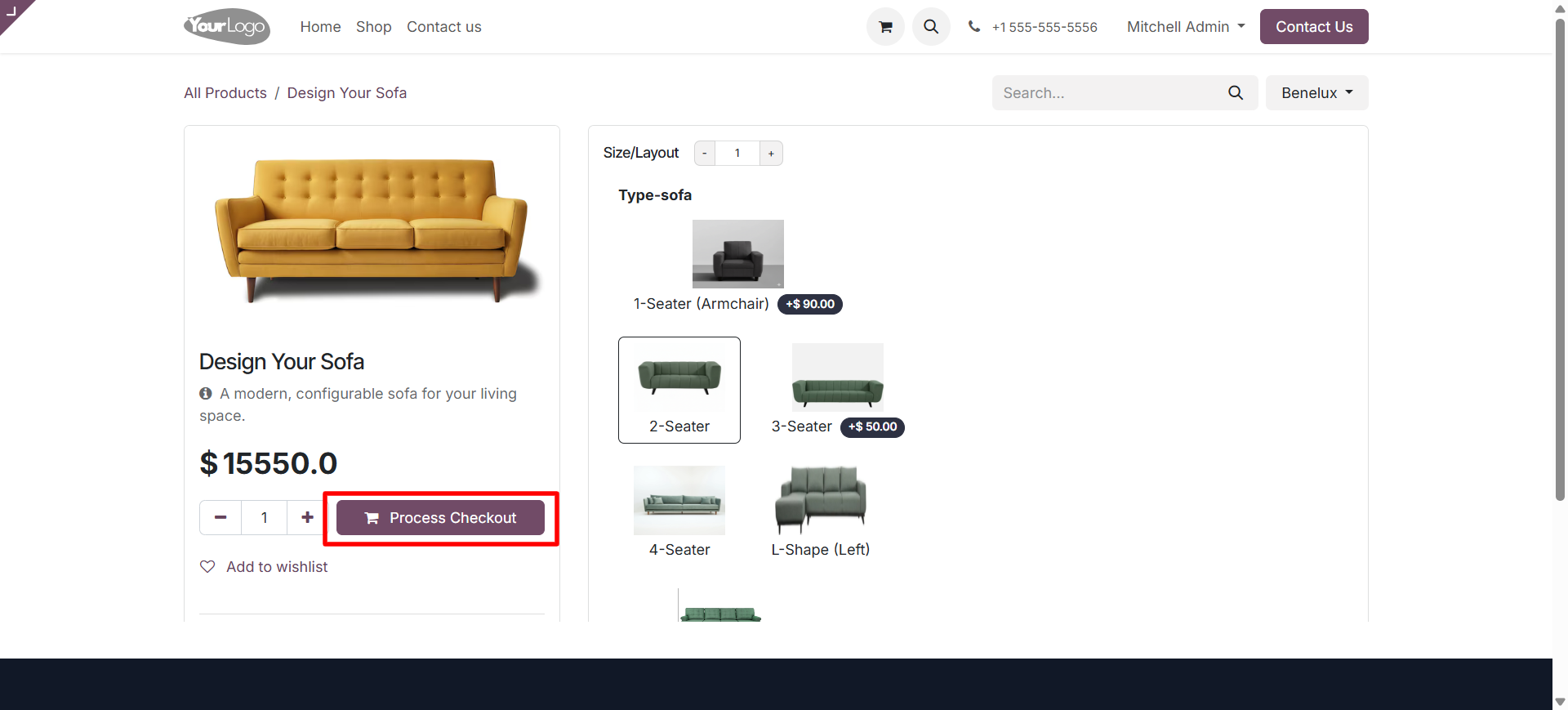
3. Checkout and Pay
- Once the product is configured, the user can proceed directly to checkout and payment.
- The configured product, its components, and price are automatically added to the shopping cart.
- The customer can complete the payment through standard Odoo payment acquirers.
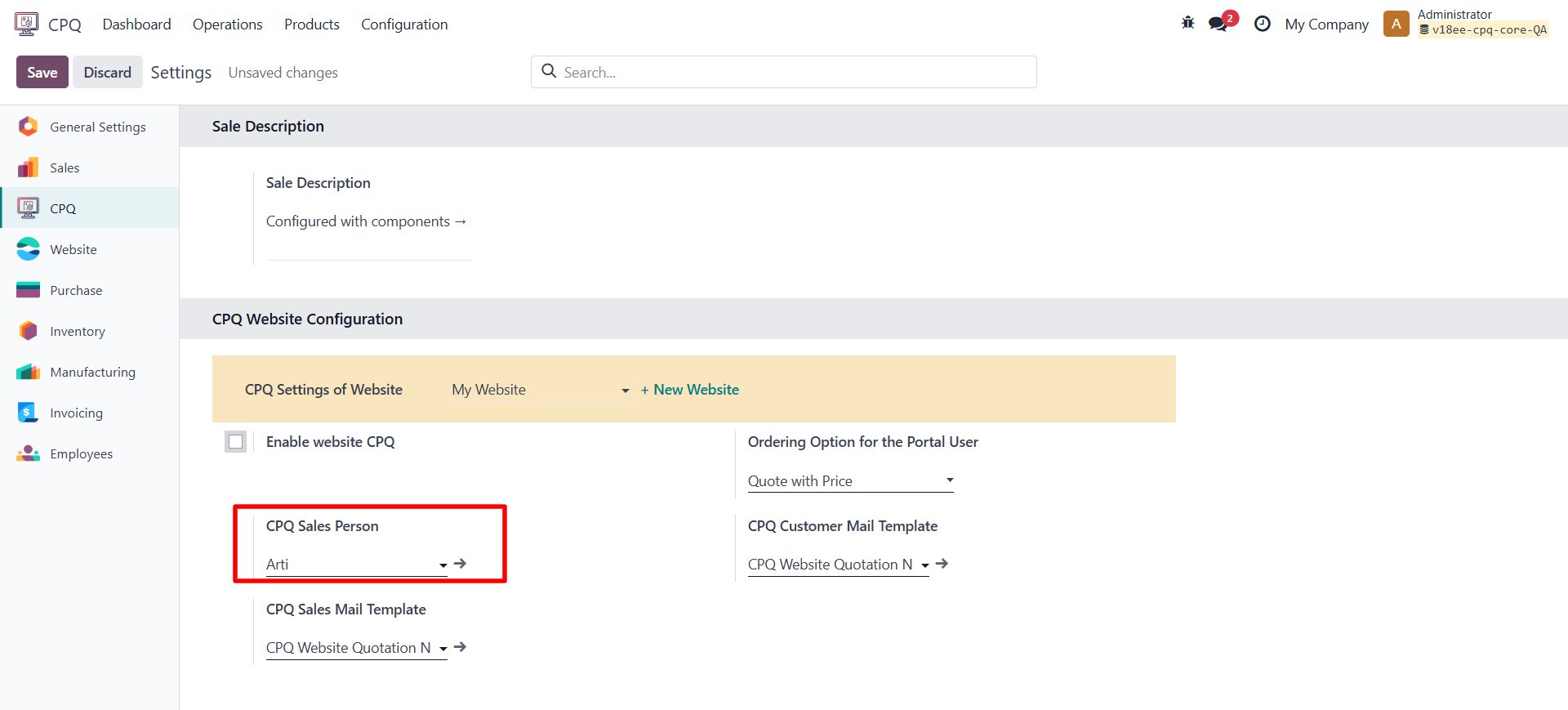
11.3 CPQ Salesperson
Assign a salesperson who will get notified when a customer configures or requests a quotation.
11.4 Email Templates
- Customer Mail Template: sent to the customer after they submit a configuration.
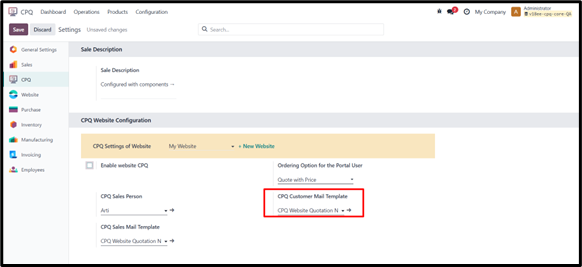
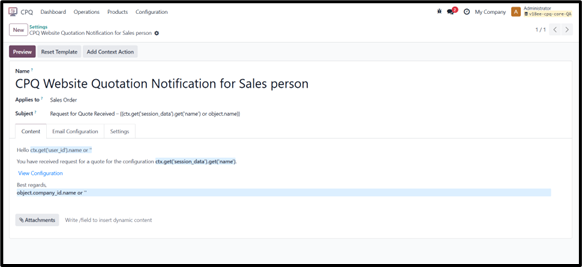
- Sales Mail Template: sent to the salesperson when a new configuration or RFQ is created.
11.5 Notes
- Only portal users can configure; public users cannot.
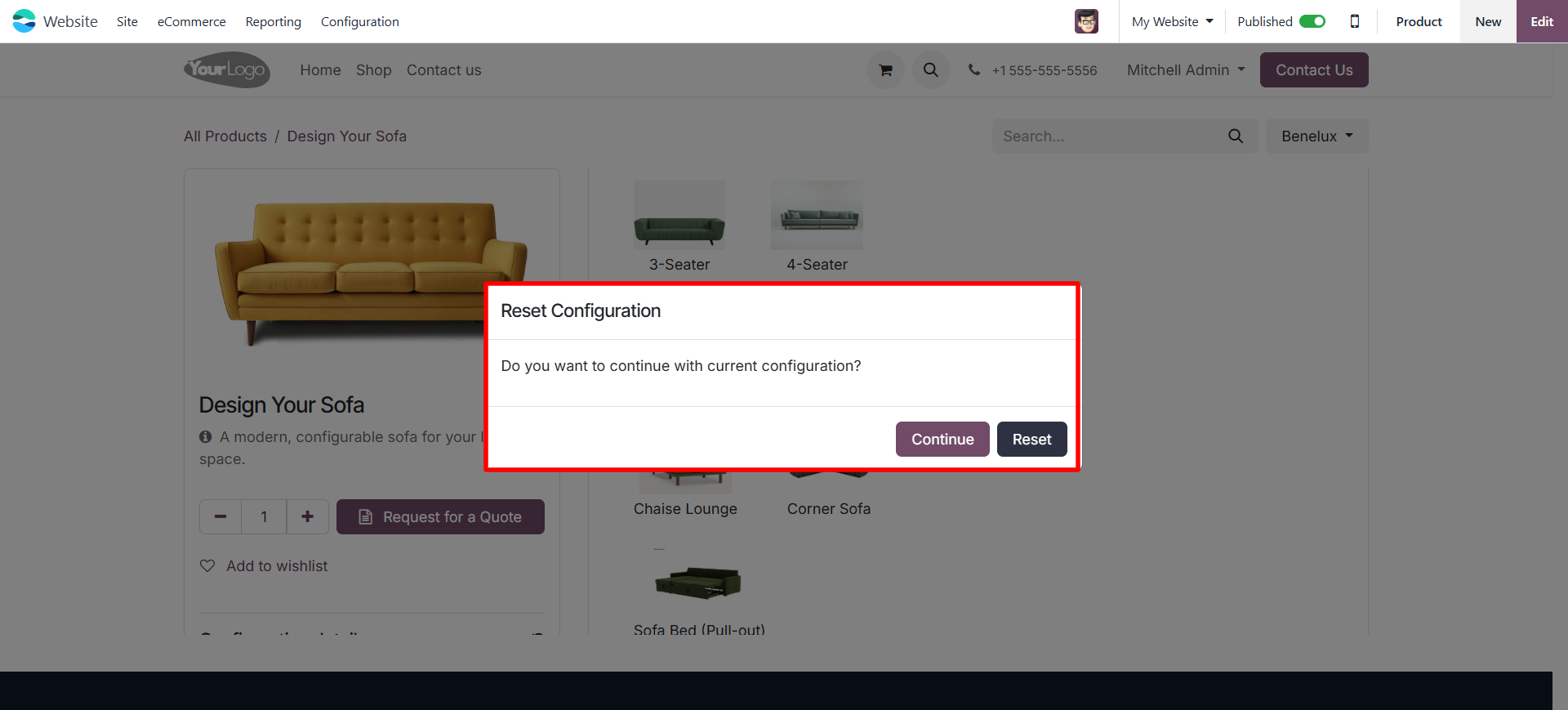
- If a customer leaves mid-way, next time they return, a popup appears:
“Reset Configuration – Continue or Reset?”. The user can choose Continue to pick up where they left off, or Reset to start fresh.
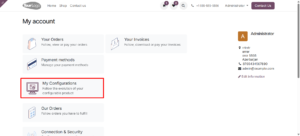
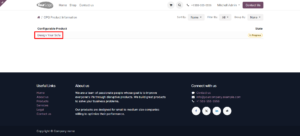
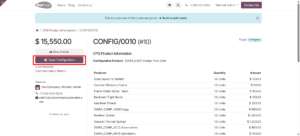
- In the customer portal, a new menu My Configurations shows all their saved and completed configurations.