
The SolidWorks Odoo integration sits in your system tray and reads the part or assembly you have open in SolidWorks and, after you have checked everything, creates or updates the matching products and Bills of Materials in Odoo.
It can send multi-level BOMs, raw materials, work center operations, your chosen custom properties, the preview image, and the CAD files themselves. Nothing is written to Odoo until you press Push.
If your products are designed in SolidWorks and built in Odoo, the gap between the two is where time is lost retyping part numbers, Bills of Materials, and materials by hand.
This guide explains how the SolidWorks Odoo Connector closes that gap, step by step.
What is SolidWorks Odoo Integration?
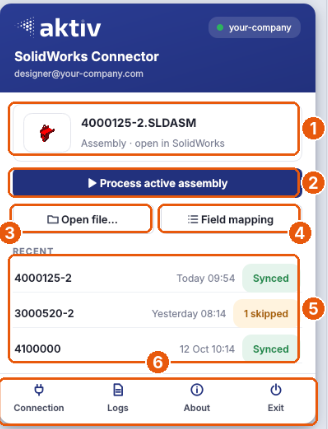
The SolidWorks Connector is a small Windows program that runs in the system tray.
It reads the part or assembly open in SolidWorks and, once you have checked everything, creates or updates the matching products and Bills of Materials in Odoo.
It is built around one safe idea: you review first, and nothing is written to Odoo until you press Push to Odoo.
What does the SolidWorks connector create in Odoo?
It turns your CAD structure into Odoo products and BOMs, with the materials, operations, fields, images, and files you choose.
- Products – every part and sub-assembly becomes an Odoo product. Existing products are found by their Internal Reference and updated instead of duplicated.
- Bills of Materials – each assembly gets a BOM with its parts and sub-assemblies and their quantities, on every level (multi-level BOM).
- Raw materials – a part’s material (for example a steel sheet) and its quantity (for example the weight in kg) become the one component line of that part’s own BOM.
- Operations – work centers and times from SolidWorks become the operations of the BOM.
- Your own fields – any SolidWorks custom property (description, revision, category, vendor, and so on) can be written into an Odoo field. You decide which, on the Field mapping page.
- Pictures and files – the SolidWorks preview becomes the product image, and optionally the CAD file itself is attached to the product and its BOM.
What do you need to connect SolidWorks to Odoo?
| Item | Details |
|---|---|
| Windows PC | Windows 10 or 11, 64-bit |
| SolidWorks | Installed on the same PC. The connector starts it for you when needed |
| Odoo | Your company’s Odoo database with Inventory and Manufacturing (for BOMs). Purchase is needed only for vendor lines |
| Work Orders setting | To see and use BOM operations, switch on Odoo > Manufacturing > Configuration > Settings > Work Orders. The push warns when it is off |
| Odoo user | A user who may create and edit products, BOMs, and work centers if they should be created. An API key for that user is recommended |
| Connection details | Odoo address (URL), database name, and user name. Ask your Odoo administrator |
How does the SolidWorks Odoo Integration work, end to end?
You set up the connection and mapping once, then every push follows the same path: open and process the model, the connector reads it and checks Odoo, you review and can edit, you confirm the summary, the push runs in stages, and the result window opens with a link into Odoo.
Here is the full flow, stage by stage.
Stage 0: Install the connector, create an Odoo API key, and sign in with your Odoo URL, database, user, and key. These are saved on the PC, so you do this only once. The first push also asks you to set the field mapping (stage 3).
Stage 1: Open and process the model. Open the part or assembly in SolidWorks and save it, because a model that was never saved cannot be pushed (drawings, .SLDDRW, are not supported). Then double-click the tray icon, or open the panel and choose Process active assembly. If the model is not open, Open file starts SolidWorks for you.
Stage 2: The connector reads the model. A reading window shows a picture of your model, the component being read, and the progress (you can minimize or cancel it). While it reads, the connector signs in to Odoo in the background and checks which products already exist. A few things happen automatically here:
- Parts used many times, such as bolts and washers, are read only once.
- Components that are suppressed or excluded from the BOM in SolidWorks are skipped.
- If SolidWorks cannot load a component, it shows as UNKNOWN. Make sure all referenced files are reachable before you push.
Stage 3: Check the field mapping. The first time (or when you want more data in Odoo), choose which SolidWorks properties go into which Odoo fields, including the raw material, units, and operations. You set this once; it is saved and reused for every future push, for every model. After the first setup, a normal push skips straight to the review.
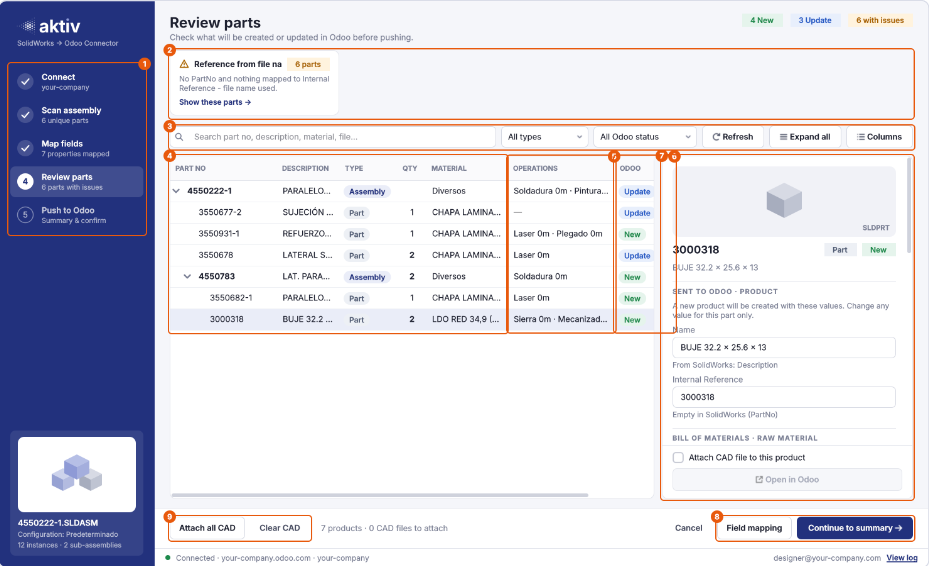
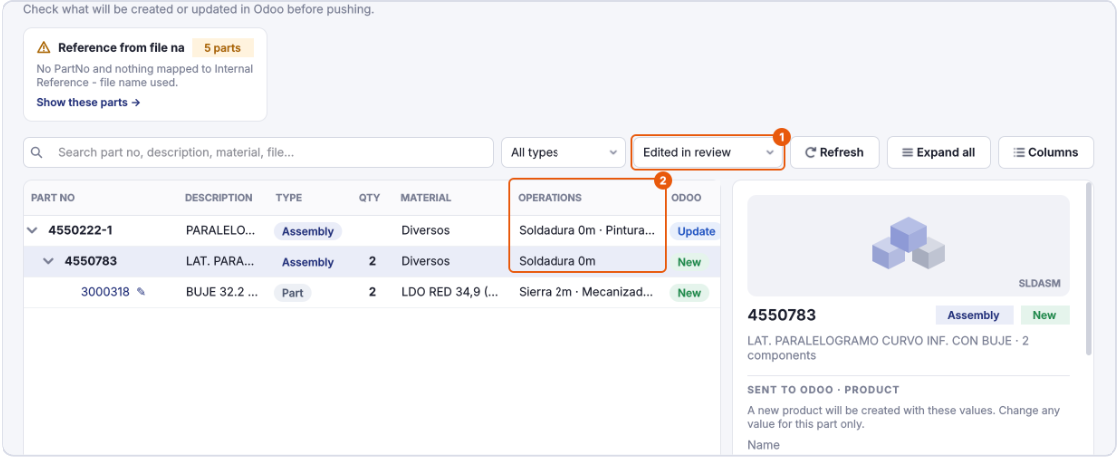
Stage 4: Review the parts. The review window shows exactly what will be created or updated in Odoo. Nothing has been sent yet. You see each part’s status (New or Update), any issue cards worth checking, the operations, and a details panel where you can correct values for a single part (the SolidWorks file is not changed). You also tick which CAD files to attach. When it looks right, continue to the summary.
Stage 5: Confirm the summary. The summary is a last check of everything that will happen: how many products will be created and updated, how many Bills of Materials will be built, how many CAD files will attach, and how many parts still have issues. A plain-language panel explains what will happen and warns about any unsaved mapping changes. Then you press Push to Odoo.
Stage 6: The push runs. The push sends the data to Odoo in phases: connect and prepare, create or update the products, then build the Bills of Materials. You can watch the state of every product and BOM (Waiting, Sending, Created, Updated, Failed, Not sent). The push runs in the background, so you can minimize it and keep working, and the tray panel shows the progress. Cancel stops after the current item, and whatever was already sent stays in Odoo.
How do you connect SolidWorks to Odoo?
- Install. Run the setup file and follow the installer. Start the connector from the Start menu. No window opens; instead the Aktiv icon appears in the system tray. You can optionally right-click the icon and tick Start with Windows. Only one copy runs at a time.
- Create an Odoo API key (recommended). An API key works like a password for programs and can be removed any time without changing your login. In Odoo, go to your name > My Preferences > Account Security > New API Key, name it, and copy it. It is shown only once.
- Sign in. The sign-in window opens the first time you process a model. Enter your Odoo URL, pick the Database, enter your Username, and paste the API key. Use Test connection to check the details, then Save & connect.
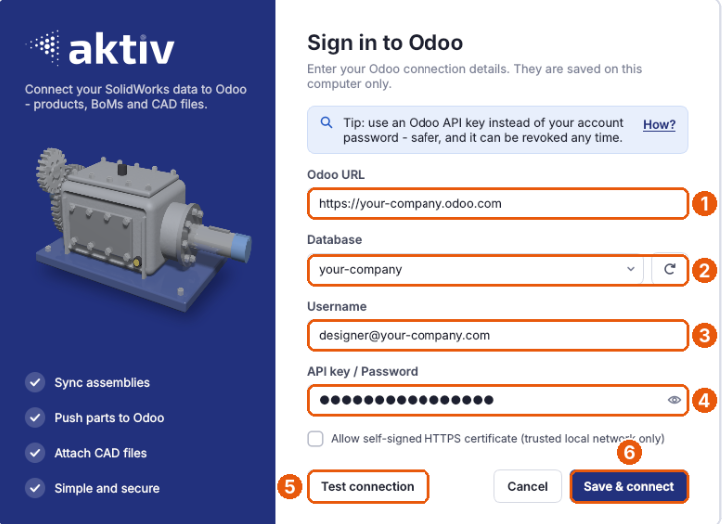
Your URL, database, and user are saved on the PC, and the API key is kept in the Windows Credential Manager, never written to the log or push history. If Odoo runs on your own server with a self-signed certificate, you can tick Allow self-signed HTTPS certificate for that trusted network.
How do you map SolidWorks properties to Odoo fields?
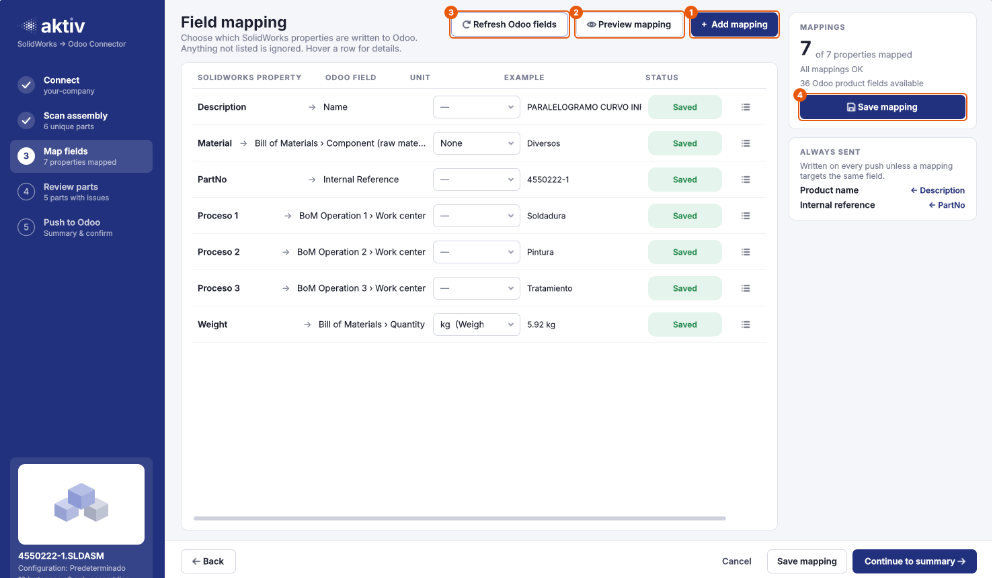
Field mapping is a list of simple rules that tell the connector “take this value from SolidWorks and put it in this field in Odoo.” You set it up once, it is saved, and it is reused for every push and every model after that.
Which values are filled in automatically?
The Odoo Solidworks connector maps product name & internal reference field automatically.
- Product name – taken from the Description property, or the part number or file name if there is no Description.
- Internal Reference (the product code) – taken from the PartNo property, or the file name. This is the code Odoo uses to recognize the same product next time, so it is updated instead of duplicated.
- New products are also created as purchasable, sellable, and storable with inventory tracked. You do not set any of that up.
How to add your own mapping?
- Pick the SolidWorks property you want to send. The list shows each property, how many parts have a value for it, and an example value.
- Pick the Odoo field it should go into. Only fields that can hold that kind of value are shown, and the rest are greyed out, so you cannot accidentally send a value into the wrong place.
- Confirm and save. Check the preview, add the rule, then click Save mapping. Until you save, the push keeps using the mapping you saved last time.
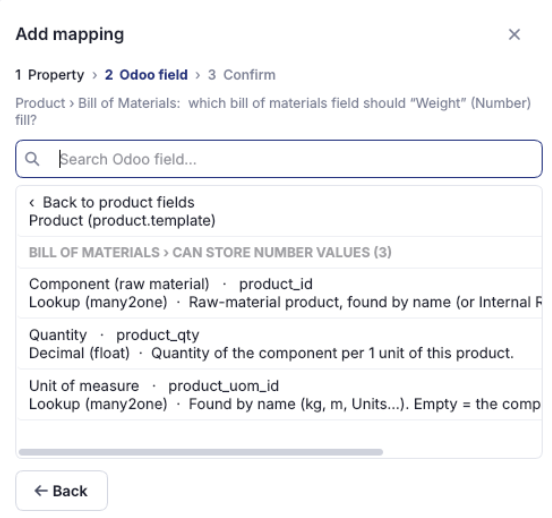
Sending the material and the operations
Two things use a small group of rules rather than a single field, because they build the Bill of Materials:
- Raw material – map the material property to Bill of Materials > Component, its quantity to Bill of Materials > Quantity, and (optionally) its unit to Bill of Materials > Unit of measure. The material name in SolidWorks must match the Odoo product exactly, by name or code.
- Operations – there are five slots, BoM Operation 1 to BoM Operation 5. For each one you map the work center (required), and optionally an operation name and the time in minutes. The work center name must match a work center in Odoo.
Unit of Measure
Each number row has a unit dropdown. The unit only tells Odoo what the number means; the connector does not recalculate it.
Odoo converts between units of the same kind (grams, kilograms, tonnes), but not between different kinds (a length used where a weight is expected is skipped with a warning). So, if a weight is stored in grams, choose grams, and Odoo does the rest.
Rules that keep your data safe
- Fields that should never be set from SolidWorks, such as those that would archive a product or change its type, are simply not offered.
- A value that does not fit a field is skipped with a warning, never written as something wrong.
- A mapping with a problem cannot be saved, and the push stays blocked until it is fixed.
Visual Field Mapping Editor for SolidWorks Odoo Integration
Click Preview mapping on the field mapping page to see – and edit – the mapping in visual format: SolidWorks properties on the left, Odoo fields on the right, and the lines between them show how the data flows.
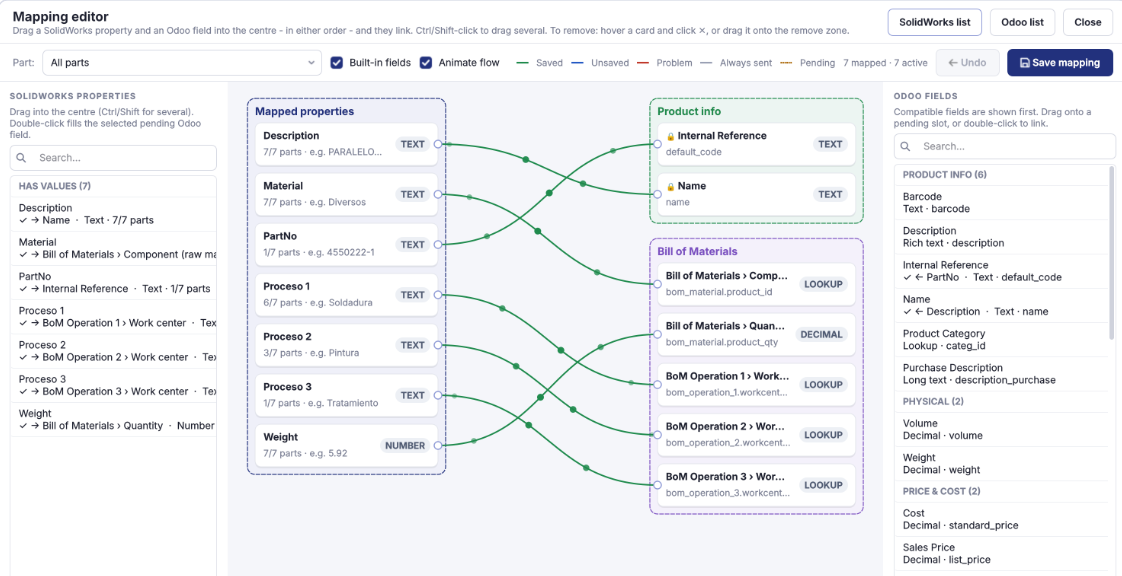
Tips on Working with the editor
- Link: drag a property and an Odoo field into the centre – in either order. Drop one onto the other’s card, or drop both into empty space; they are paired automatically.
- Several at once: select several items in a list and drag them together; they wait as “pending” until you drag their partners.
- Re-link: drag an Odoo card onto another property. Remove: hover a card and click ✕, or drag it onto the Drop here to remove zone.
- Esc cancels pending items. Fields that don’t fit the property’s type are dimmed; dropping one explains why.
How does SolidWorks create a multi-level BOM in Odoo?
Each assembly gets a BOM with its parts and sub-assemblies and their quantities. Sub-assemblies get their own BOM, so the structure is multi-level. A material set on an assembly itself is ignored.
A part gets its own BOM when it has a raw material and/or operations: one raw-material line (material, quantity, unit) plus its operations. A part with neither a material nor operations gets no BOM.
The raw material is a separate product in Odoo. It is found by name, then by Internal Reference, fresh on every push. The material name in SolidWorks must match the Odoo product’s name or Internal Reference exactly.
How do SolidWorks operations become Odoo work center operations?
Under the Odoo field list you will find five groups, BOM Operation 1 to BOM Operation 5. Each is one operation on the BOM’s Operations tab, with three targets:
- Work center – the name or code of the work center, such as Laser. This is required; without it the operation is skipped.
- Operation name – optional. Empty means the operation takes the work center’s name.
- Duration (minutes) – the minutes per unit. Not mapped or empty means 0 minutes.
Operations are numbered 10, 20, 30 and so on in Odoo. Both parts and assemblies can have operations, such as welding on a sub-assembly, and work centers are found by name, then code.
To see operations in Odoo, the Work Orders setting must be on. A part can have up to five operations from the connector in this version.
Can you review and edit the data before it goes to Odoo?
Yes. In the details panel you can edit a value for that part only: the name, Internal Reference, product category, the raw material and its quantity and unit, and the operations (choosing a work center from Odoo and typing the minutes, adding up to five).
An edited field is marked and can be reset to the SolidWorks value. These review edits are sent to Odoo instead of the SolidWorks value, and the SolidWorks file itself is not changed.
A review edit applies to one push; if you need the same value every time, correct the property in the SolidWorks file so the next read picks it up.
| Field | How to edit |
|---|---|
| Name, Internal Reference, text / number fields | Type the new value and press Enter or leave the field |
| Product Category | Dropdown with the categories from Odoo (you can also type). |
| Yes/No and selection fields | Dropdown with the allowed values. |
| Component (raw material) | Dropdown with Odoo’s purchasable products as [code] name – type to search. A name typed that doesn’t exist is treated like a missing raw material |
| Quantity / Unit | Type the quantity; choose the unit from Odoo’s units. Empty unit = the unit set on the mapping, else the material’s own unit. |
| Operation | Work center dropdown from Odoo (type to search, a new name is allowed) and minutes. Add operation adds a row (up to 5); ✕ removes one for this part |
- An edited field gets a blue frame and Edited here · SolidWorks value: …. Reset puts the SolidWorks value back.
- The tree shows the new values at once and marks the part with ✎; the issues are checked again (an edit can fix an issue).
- The status filter Edited in review shows only edited parts; the footer counts them.
- Changing the Internal Reference can change the status New Update) – the product is matched on the new value.
- Edits are kept while the review window is open (also when you go to the mapping or summary and back).
- Closing the window discards them. During a push the panel is locked.
- The result window says how many parts were sent with review edits.
What happens if a raw material, work center, vendor, or category is not in Odoo?
Names from SolidWorks are looked up in Odoo. When one does not exist, the product is still sent, but that line is left out, and the result window lists what was missing with a one-click fix:
- Vendors not found – create them and add the vendor lines, or create them in Odoo Contacts and push again.
- Raw materials not found – create them as storable, purchasable products in the shown unit and add them to the BOMs.
- Work centers not found – create them with Odoo’s default working hours and add the operations to the BOMs.
- Product categories not found – these are never created automatically. Create the category in Odoo with exactly that name and push again.
You can also switch on automatic creation of missing vendors, raw materials, and work centers from the tray menu, so they are created during every push. Because names are matched exactly (spaces count, case does not), check your spelling before switching automatic creation on, so “XYZ 3mm” and “XYZ 3 mm” do not become two records.
Is it safe to push the same SolidWorks model to Odoo again?
Yes. Products are updated and the connector’s BOMs are rebuilt, so nothing is duplicated.
Products are matched one per unique Internal Reference, so existing ones are updated and new ones created.
BOMs that the connector made earlier are deleted and created again from the new data, which is how a design change flows through cleanly.
One thing to remember: because connector BOMs are rebuilt on every push, a component or operation you add by hand to one of those BOMs in Odoo is replaced on the next push.
BOMs you created by hand in Odoo are not touched. To keep a value permanently, put it in SolidWorks or use a review edit, or keep the hand-made data on a separate BOM.
Archived products are not reactivated by a push; the result tells you to unarchive them if needed.
Bring your SolidWorks designs into Odoo
The Odoo SolidWorks Connector built by Aktiv Software lets your team turn CAD parts and assemblies into Odoo products and multi-level Bills of Materials, with raw materials, operations, and CAD files, and with a full review before anything is sent.
Want to see your own parts and assemblies become Odoo products and BOMs?
Frequently asked questions
How do I integrate SolidWorks with Odoo?
Install the SolidWorks Connector on the same Windows PC as SolidWorks, sign in to Odoo with an API key, open your part or assembly, set up the field mapping once, review the parts, and push. The connector creates or updates the products and Bills of Materials in Odoo.
Does the SolidWorks Odoo connector create a multi-level BOM?
Yes. Each assembly gets a BOM with its parts and sub-assemblies and their quantities, and sub-assemblies get their own BOM, so the structure is multi-level.
Does a review edit change my SolidWorks file?
No. A review edit is sent to Odoo for that push only, and the SolidWorks file is not changed.
What happens to a component the connector cannot read?
If SolidWorks cannot load a component, it shows up as UNKNOWN. Make sure all referenced files are reachable, then process the assembly again. Do not push while UNKNOWN rows are present.
Do I need Odoo Manufacturing and Work Orders?
You need Inventory and Manufacturing for BOMs. To see and use BOM operations, the Work Orders setting must be switched on in Odoo. Purchase is needed only for vendor lines.